
# Video card
This custom block consists of a video, a title and some text and it's used to generate the following design:

# Adding the block to a page
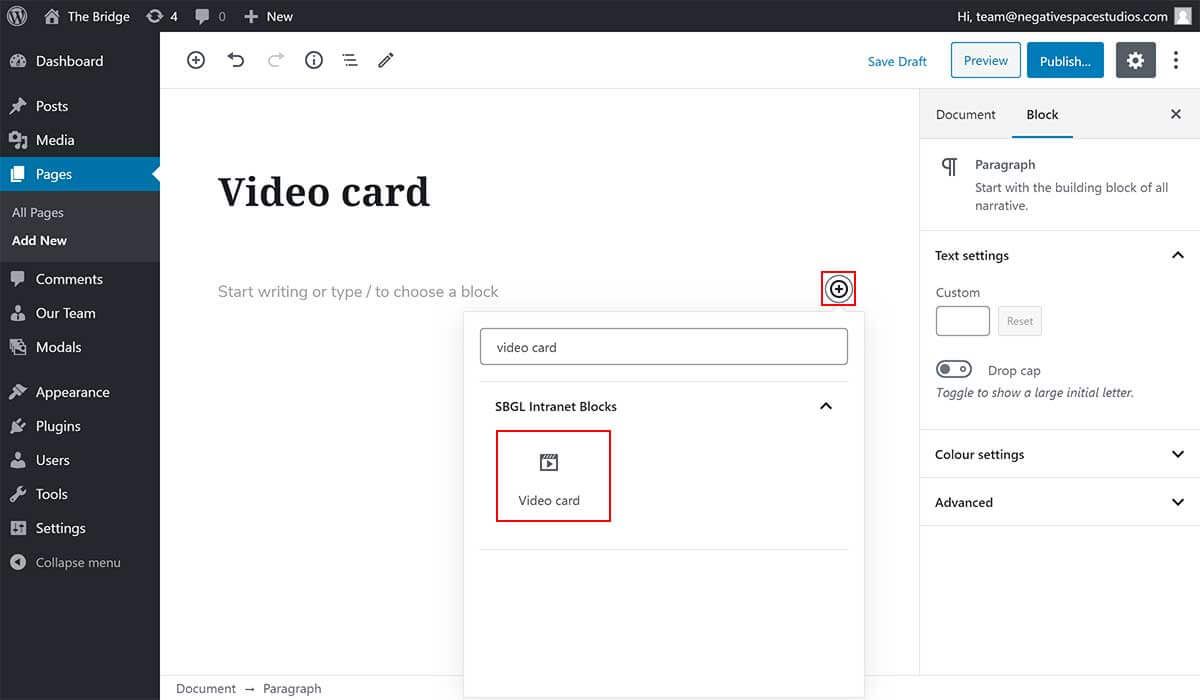
To add a Video card block:
- Add or edit a page that uses the Gutenberg editor (e.g. Page or Post)
- Click to add a Gutenberg block (more on how to add a Gutenberg block can be found here)
- Find the block with the name Video card (highlighted below) and,
- Click on it to add it
# Customising the block
# Adding a video
Once you add a video card you will be prompted to add video by either uploading a new one (Upload), using an existing one (Media Library) or using an external link (Insert from URL) as shown below.
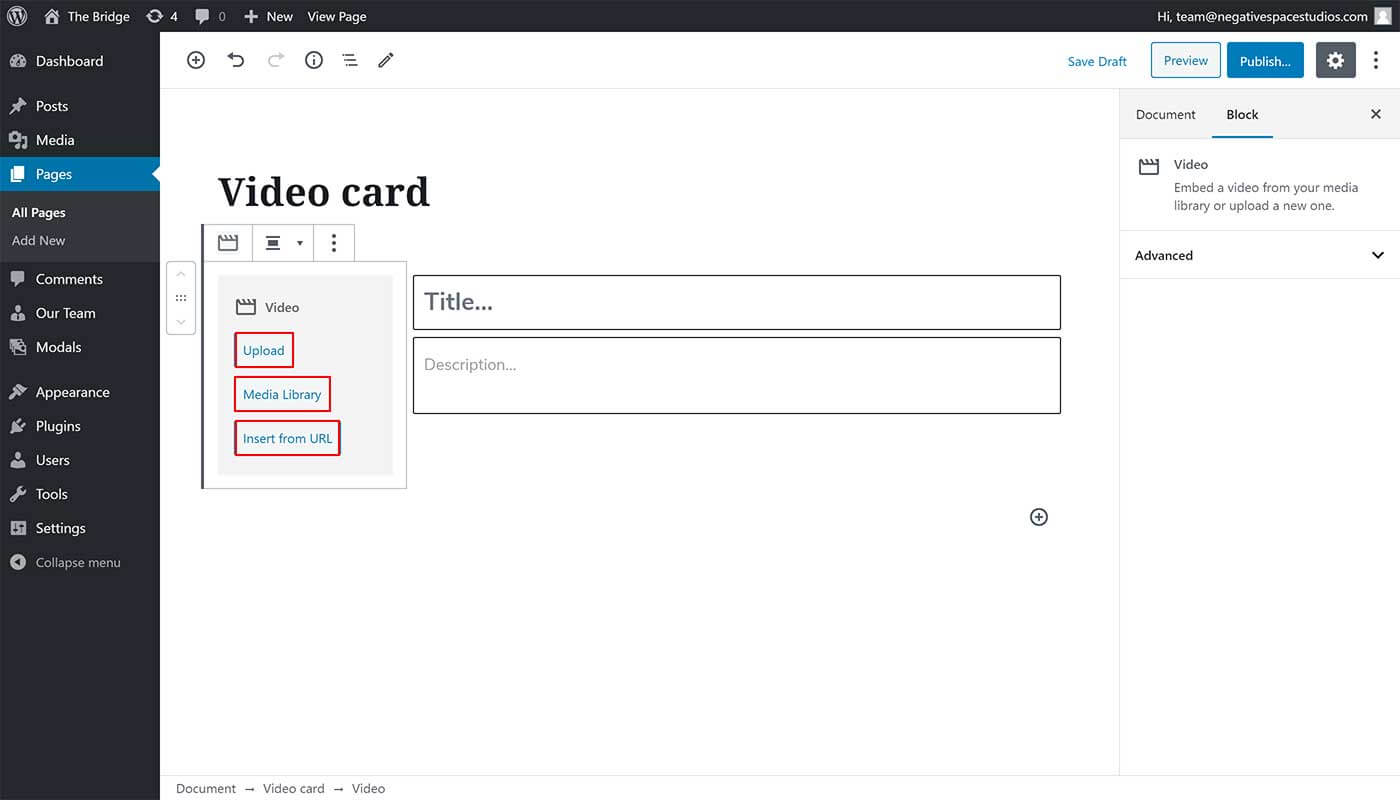
To make sure that the video you upload is compatible with most browsers, upload a video file with an MP4 format.
# Video settings
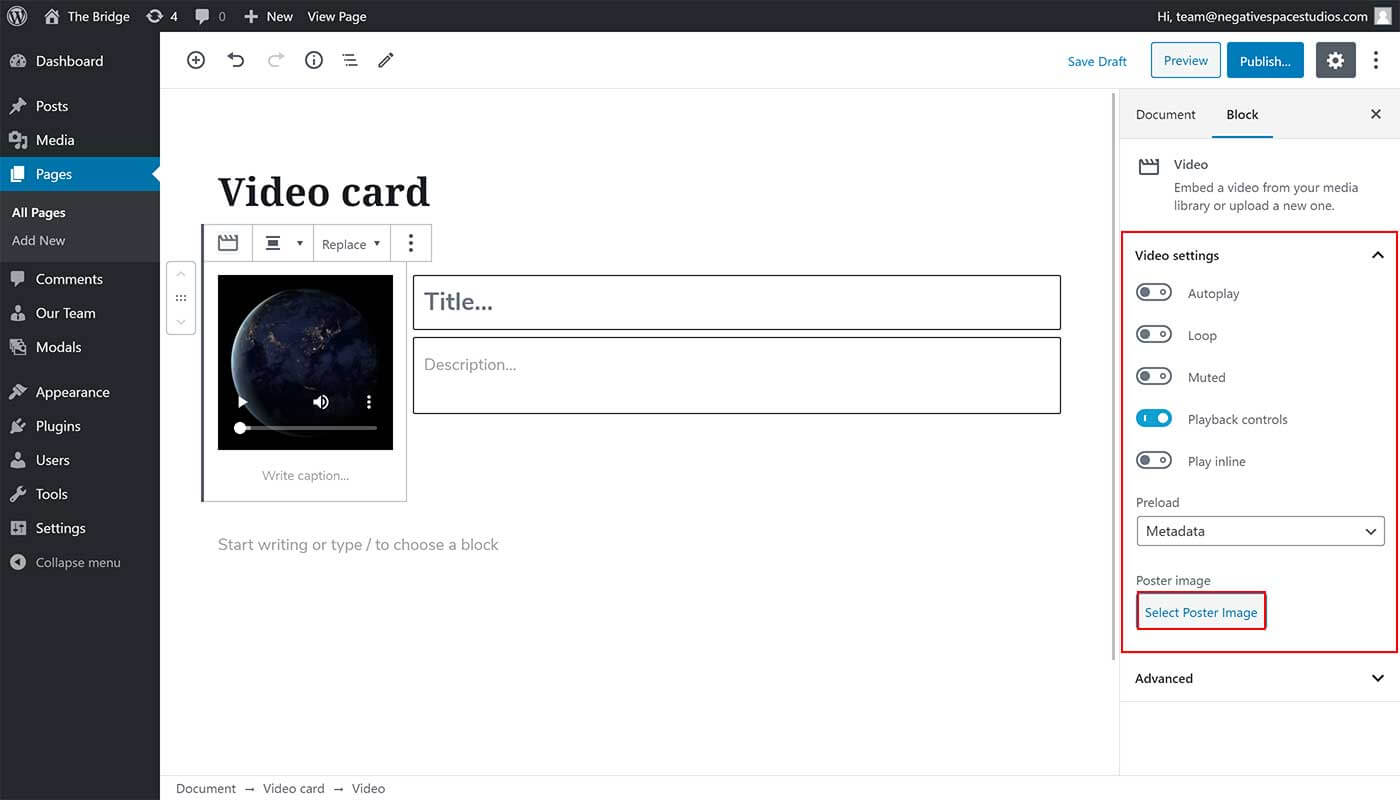
Once you upload / use a video, you will be presented with some video settings as shown below. The most useful setting for the site design is the Select Poster Image button (highlighted below) which allows you to upload / use an image as a poster (cover) for your video and which is commonly used to add an image with a play button.
# Adding text
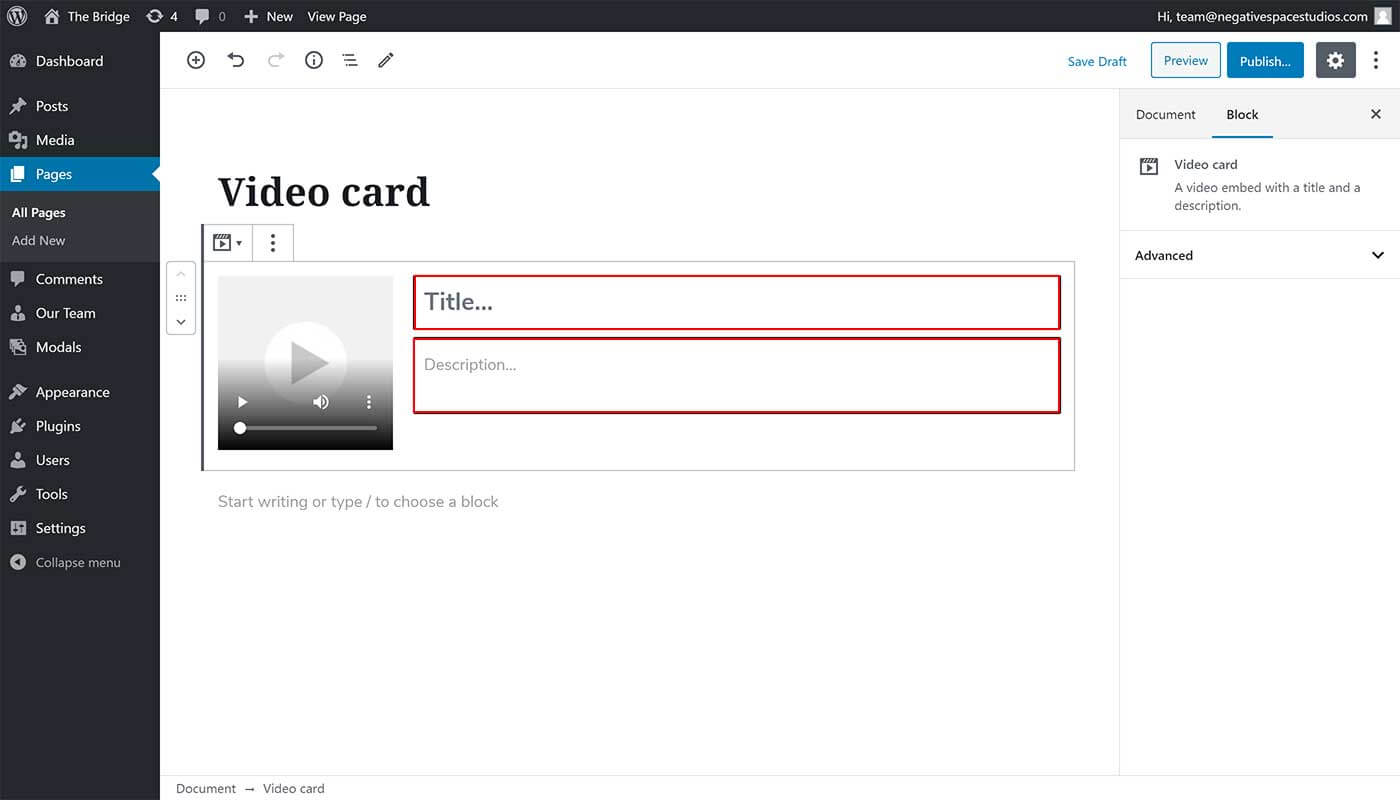
Finally, you can add the text to go alongside the video, by using the Title and Description fields highlighted below.
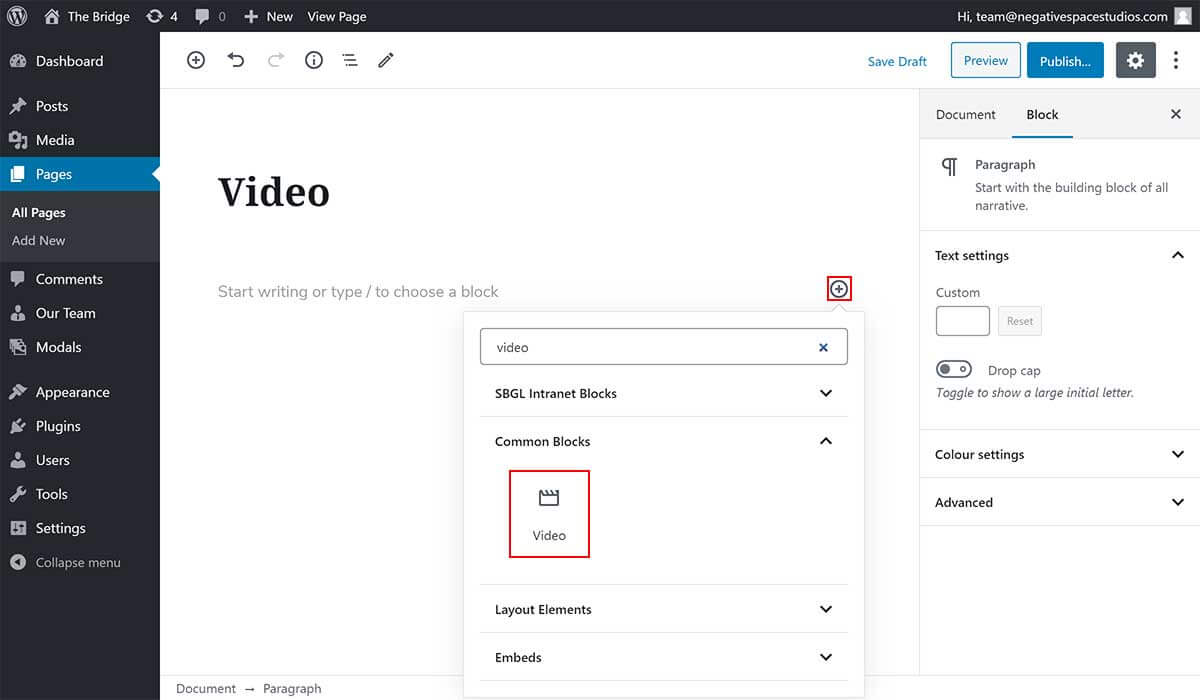
Please note: If you wish to add a video with no accompanying text, then make sure to use the Video block that comes by default with WordPress, as shown below:
← Values