
# Values
This block groups Value blocks that consist of an image and some text and it's used to generate the following design:

# Adding the block to a page
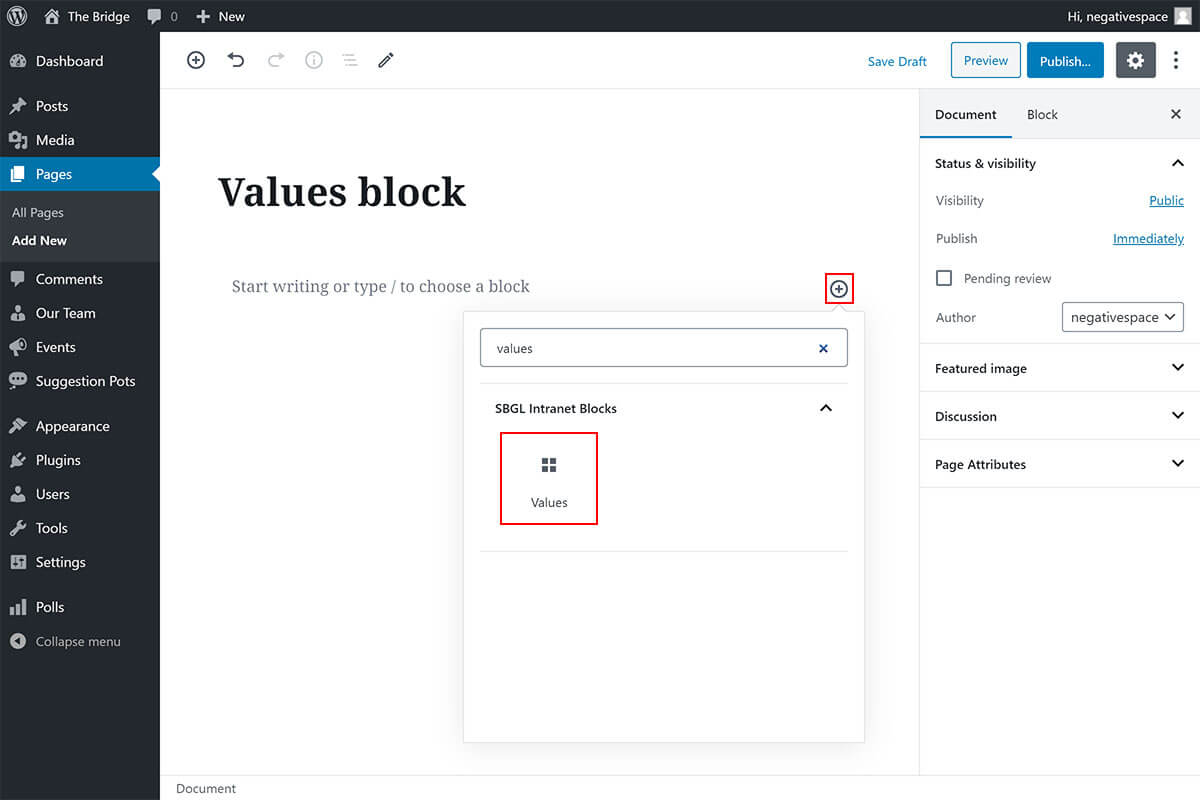
To add a Values block:
- Add or edit a page that uses the Gutenberg editor (e.g. Page or Post)
- Click to add a Gutenberg block (more on how to add a Gutenberg block can be found here)
- Find the block with the name Values (highlighted below) and,
- Click on it to add it
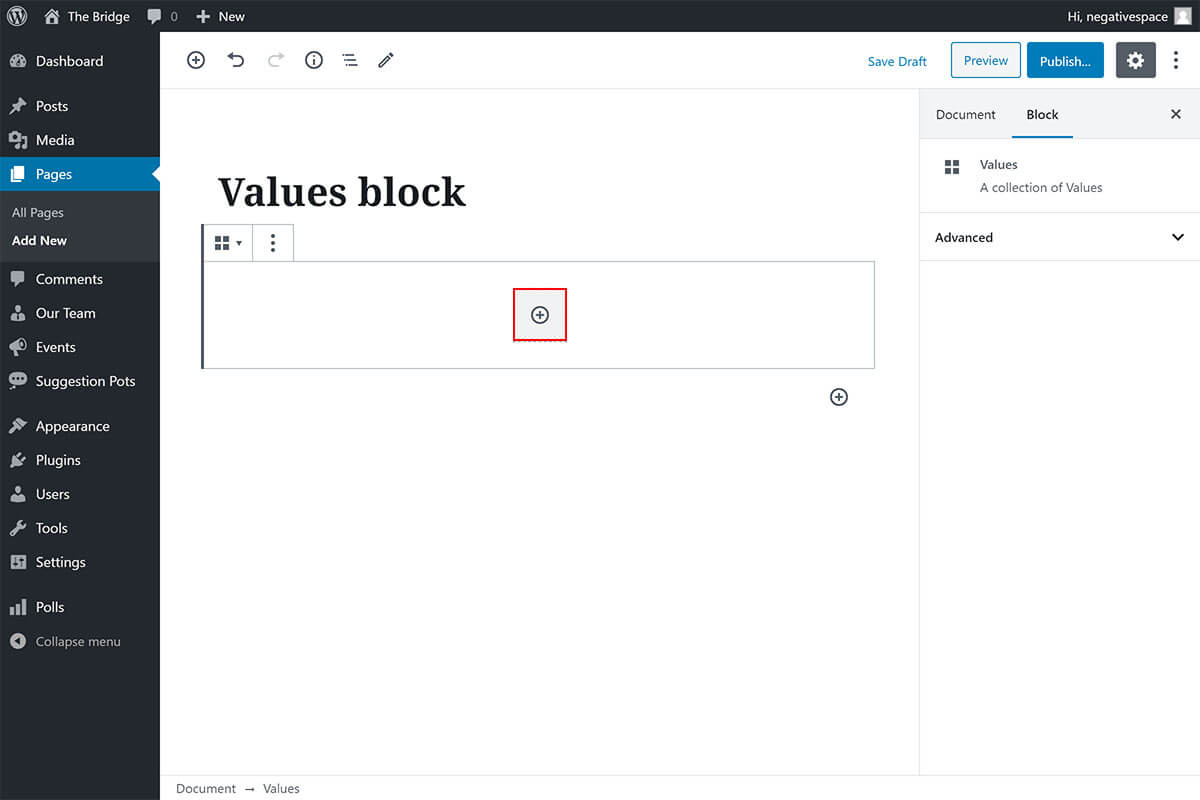
Once you add the Values block you can start adding each individual Value block by clicking on the plus button highlighted below.
# Value block configuration options
Each nested Value block comes with the following configuration options:
- Image
- Title
- Description
- Heading colour
- Text background colour
- Image gradient start colour
- Image gradient end colour
# Image
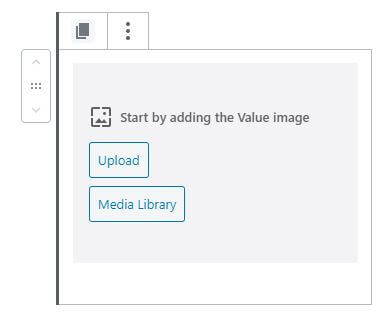
The first step after adding a Value block is to choose an image by either uploading a new one or by using the Media Library as shown below.
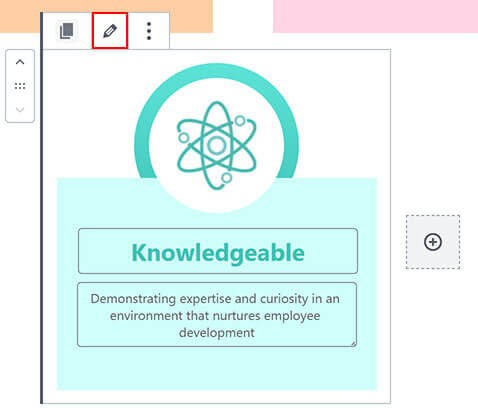
You can edit a Value image by clicking on the pencil icon (highlighted below) and following the instructions to upload a new image or use an existing one from the Media Library.
# Title & Description
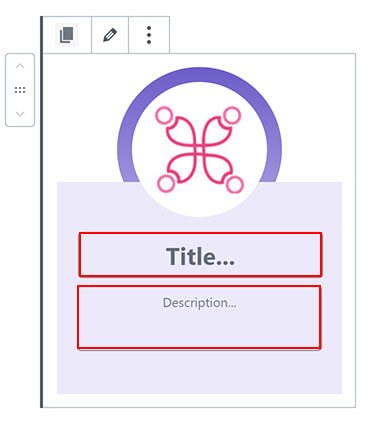
Once you're finished with the image selection step, you'll be able to change the title & description of a value block from the respective fields highlighted below.
# Colours
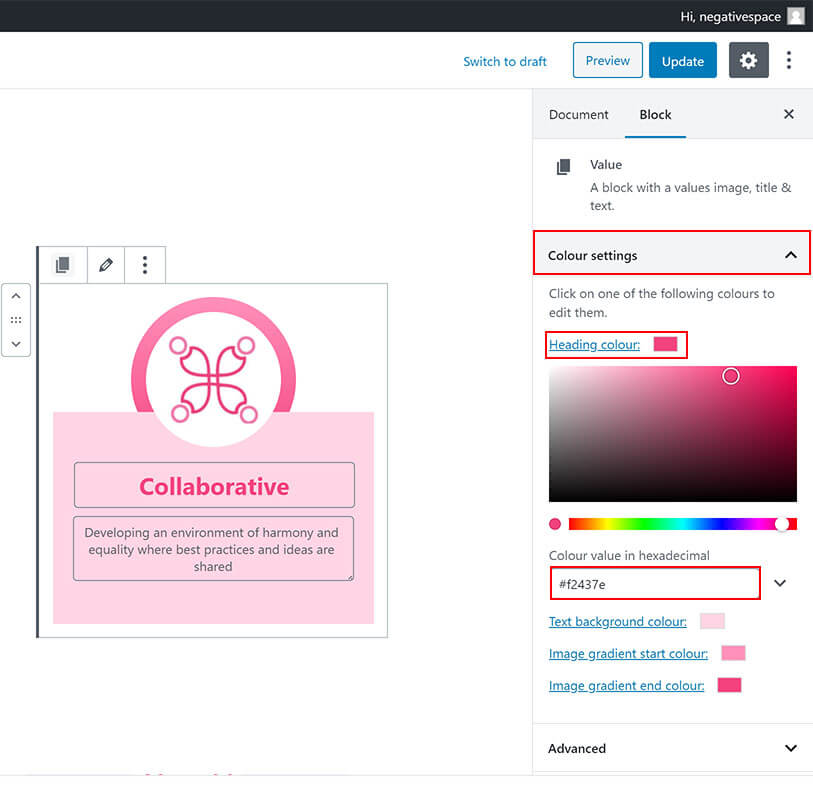
You can configure the text and background colours for each Value block by expanding the Colour settings dropdown for that block (highlighted below), clicking on the colour you wish to change and then using the colour picker or setting the hexadecimal colour value in the respective field (highlighted below).
# Reordering the Value blocks
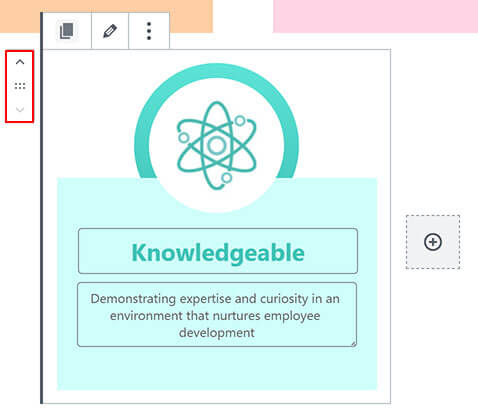
You can change the position of a Value block inside the Values block by using the control highlighted below.
← Vacancies Video card →