# Rectangle button
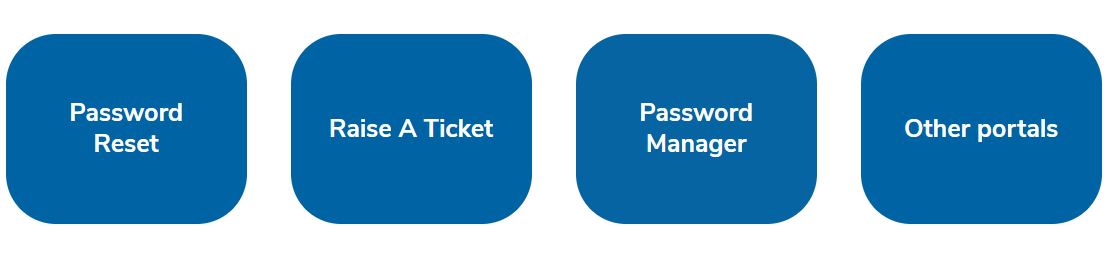
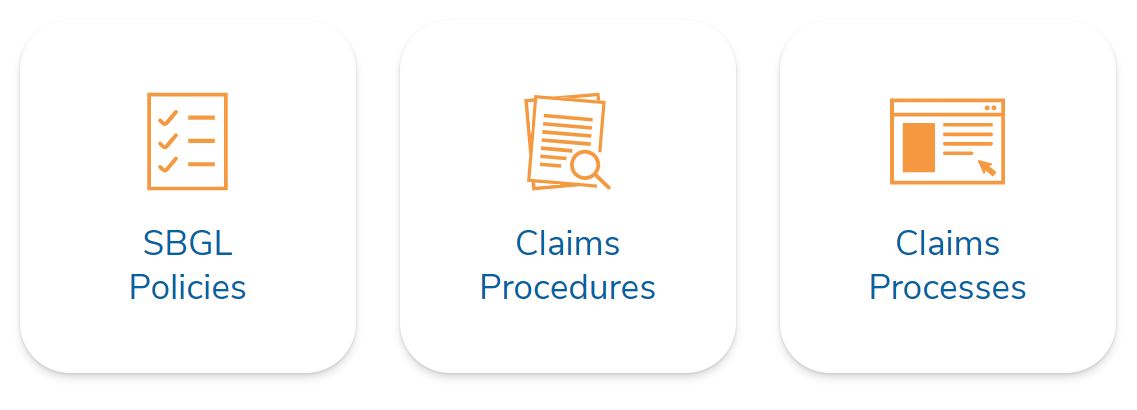
This custom block outputs a rectangle button that links to an internal or to an external link, has a predefined style (e.g. blue, white) and can have an icon, as shown below.
# Adding the block to a page
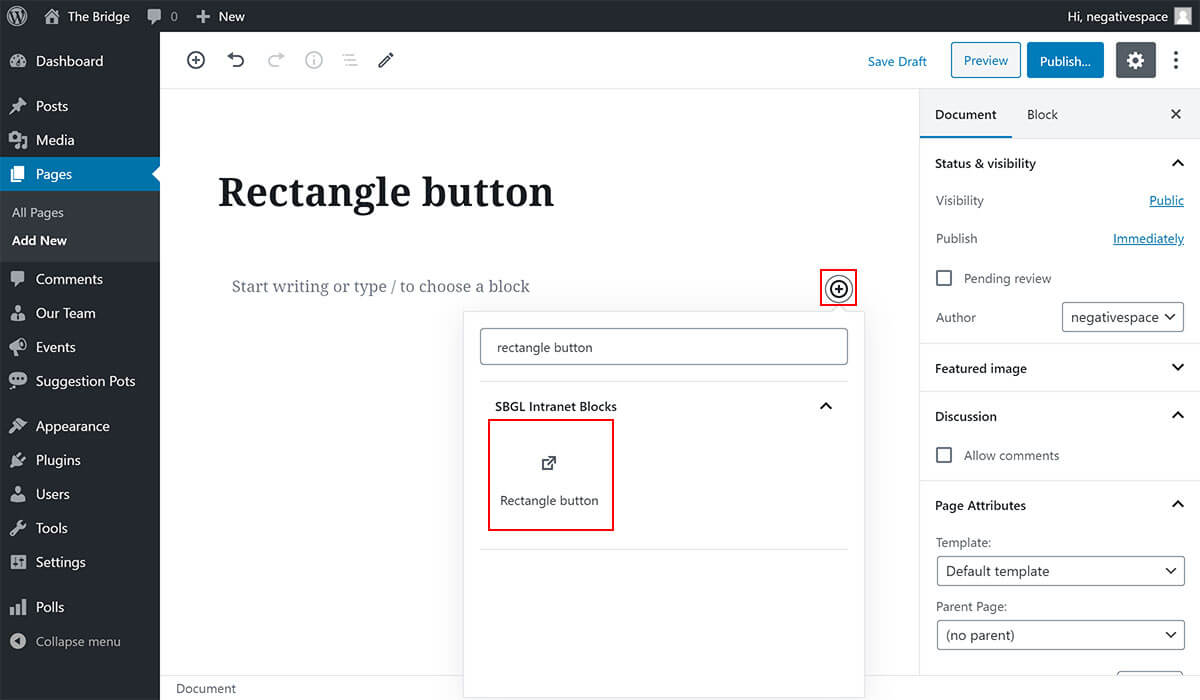
To add a Rectangle button block:
- Add or edit a page that uses the Gutenberg editor (e.g. Page or Post)
- Click to add a Gutenberg block (more on how to add a Gutenberg block can be found here)
- Find the block with the name Rectangle button (highlighted below) and,
- Click on it to add it
# Selecting a predefined style
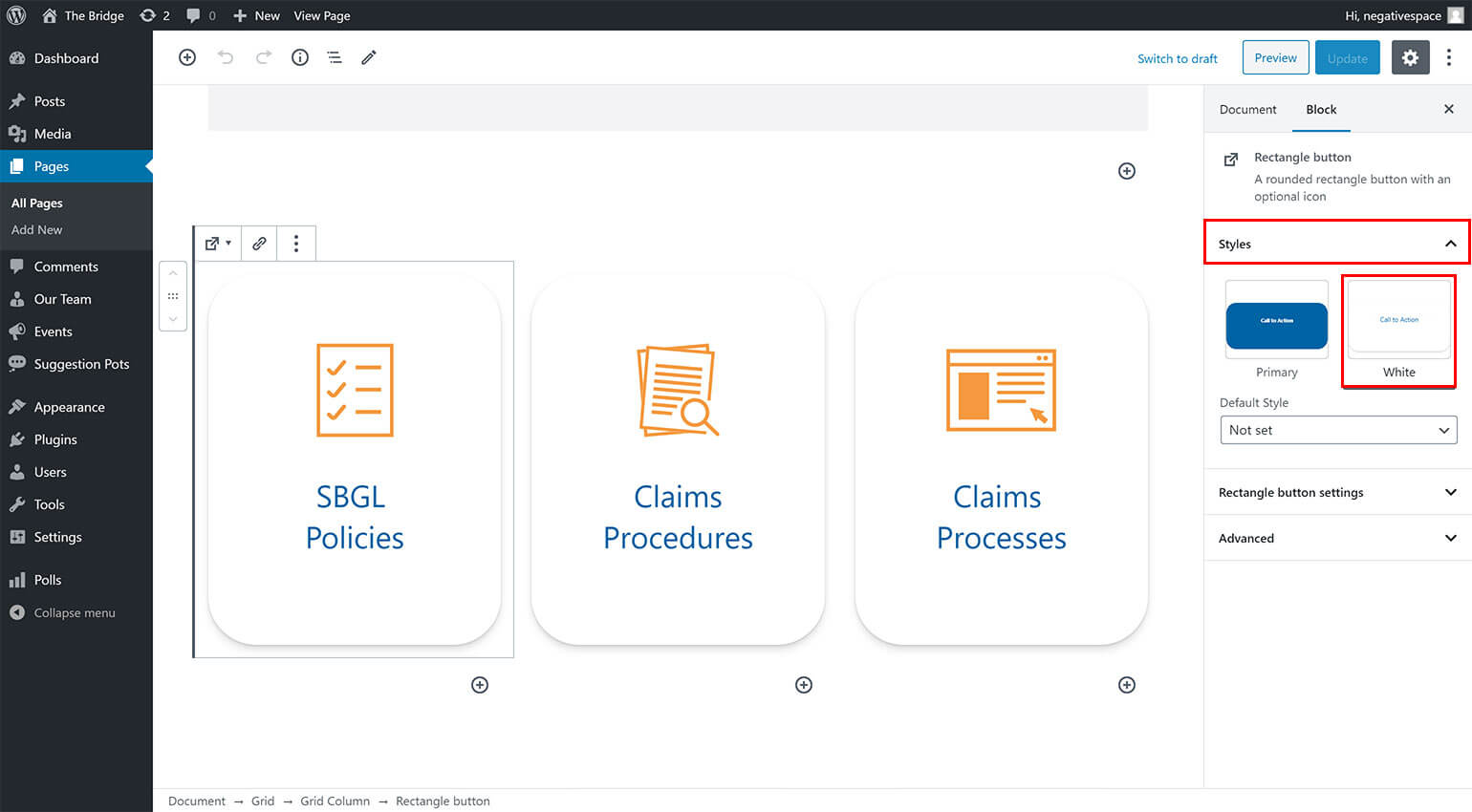
The Rectangle button block comes with predefined styles that change the colour and the font size of the button to match the Phase 2 designs. To select from one of the predefined styles, simply:
- Select the Rectangle button block
- Expand the Styles dropdown menu (highlighted below), and
- Choose from one of the available styles by clicking on its preview button (highlighted below)
# Selecting an icon
The Rectangle button can cater for an optional icon that goes above the button text. To add an icon to this block, simply:
- Select the Rectangle button block
- Expand the Rectangle button settings dropdown menu (highlighted below), and
- Choose from one of the available icons by clicking on its preview button (highlighted below)
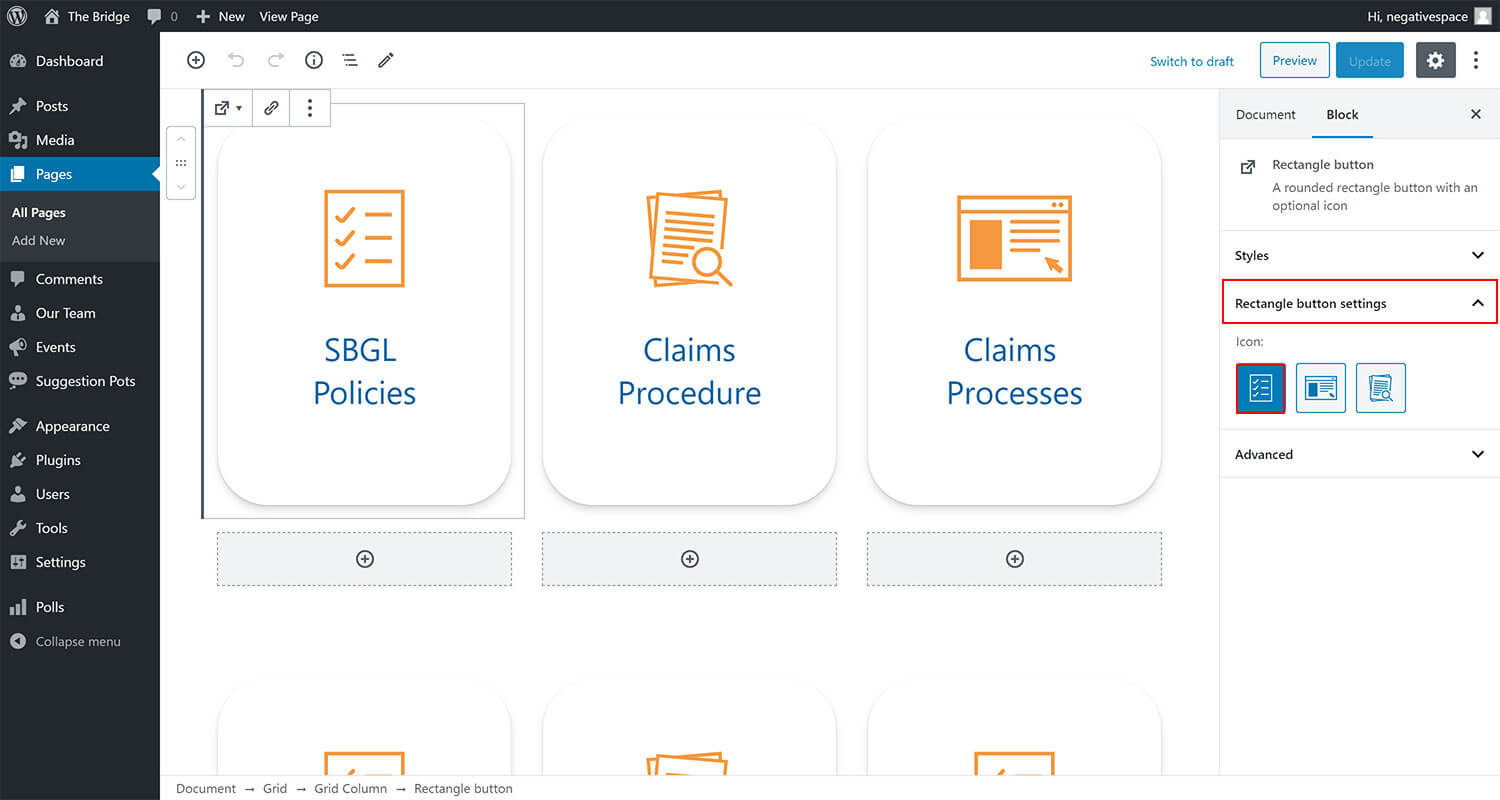
Note: Clicking twice on an icon button will remove the selection for that icon.
# Adding a link
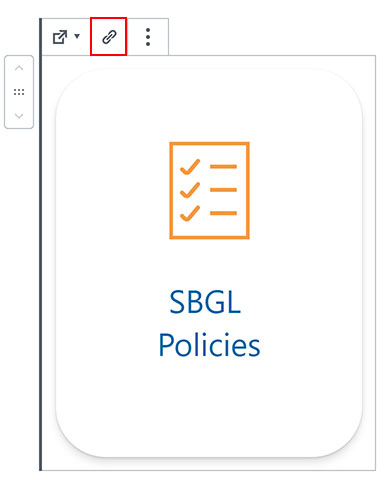
Finally, the rectangle button block can link to an external or to an internal link. To add a link to this block, simply:
- Select the Rectangle button block
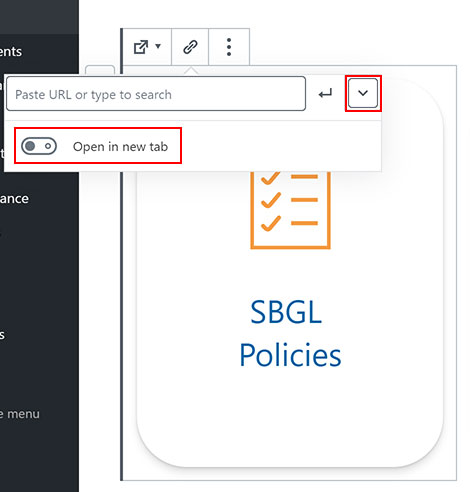
- Click on the Link icon button (highlighted below)
- Type in the name of the page you're linking to or paste a URL in the field highlighted below
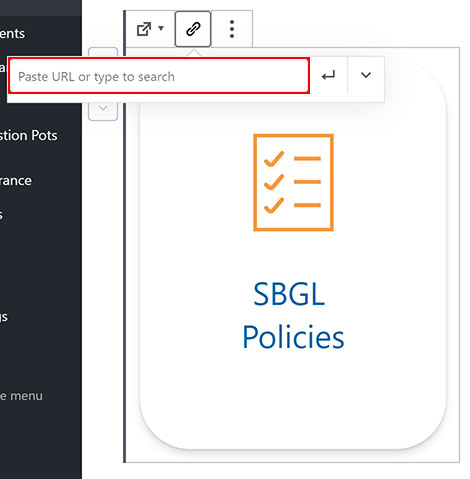
- Click on the enter button (highlighted below) to finish editing the link
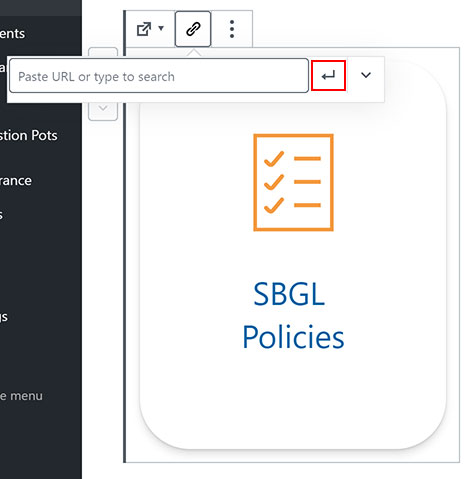
Note: You can optionally set the link to open in a new tab by opening the link field, clicking on the expand button and enabling the toggle Open in new tab as highlighted below.