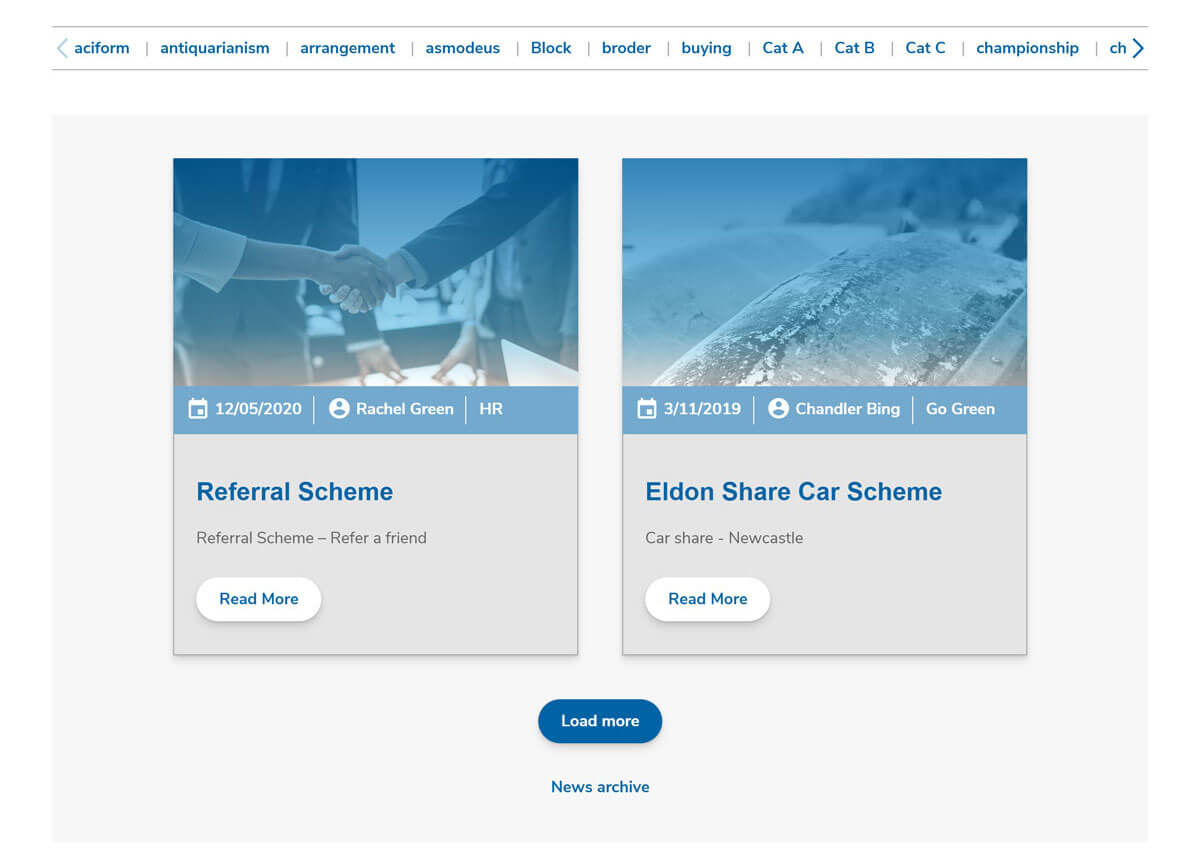
# News
The News block is a custom Gutenberg block that displays the latest News articles in a grid layout ordered by date (descending). It also includes a categories list at the top of the grid that a user can use to filter the News articles by a specific category. An example use of the News block is that on the home page as per the Phase 1 design of the Intranet.
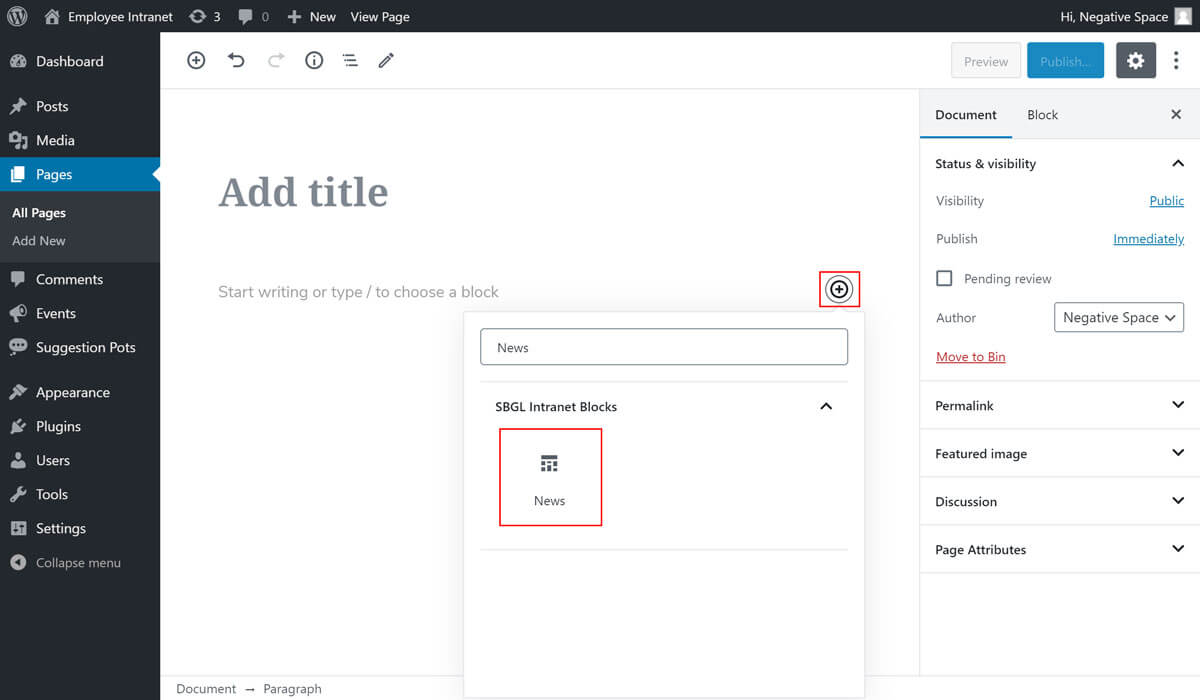
To add a News block:
- Add or edit a page that uses the Gutenberg editor (e.g. Page or Post)
- Click to add a Gutenberg block (more on how to add a Gutenberg block can be found here)
- Find and select the block with the name News (highlighted below)
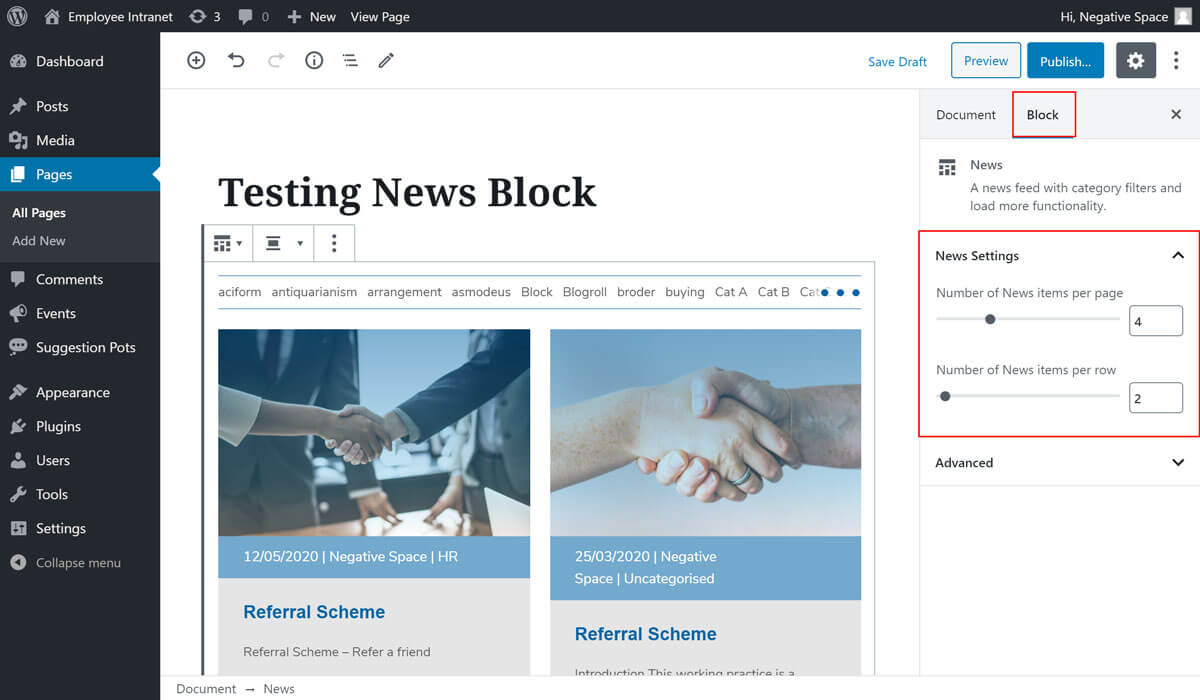
- Configure the number of News items per page (1-12) and the number of News items per row (2-3) as highlighted below
- Publish/Update the page to save your changes
# Filter news by tag
The News block can be used to display location specific News (e.g. Bristol News), which can be achieved by tagging Posts with the location tag and filtering the News block by that tag.
To tag a Post, when editing a Post, simply click the Document tab and fill in the field inside the Tags dropdown as highlighted below.
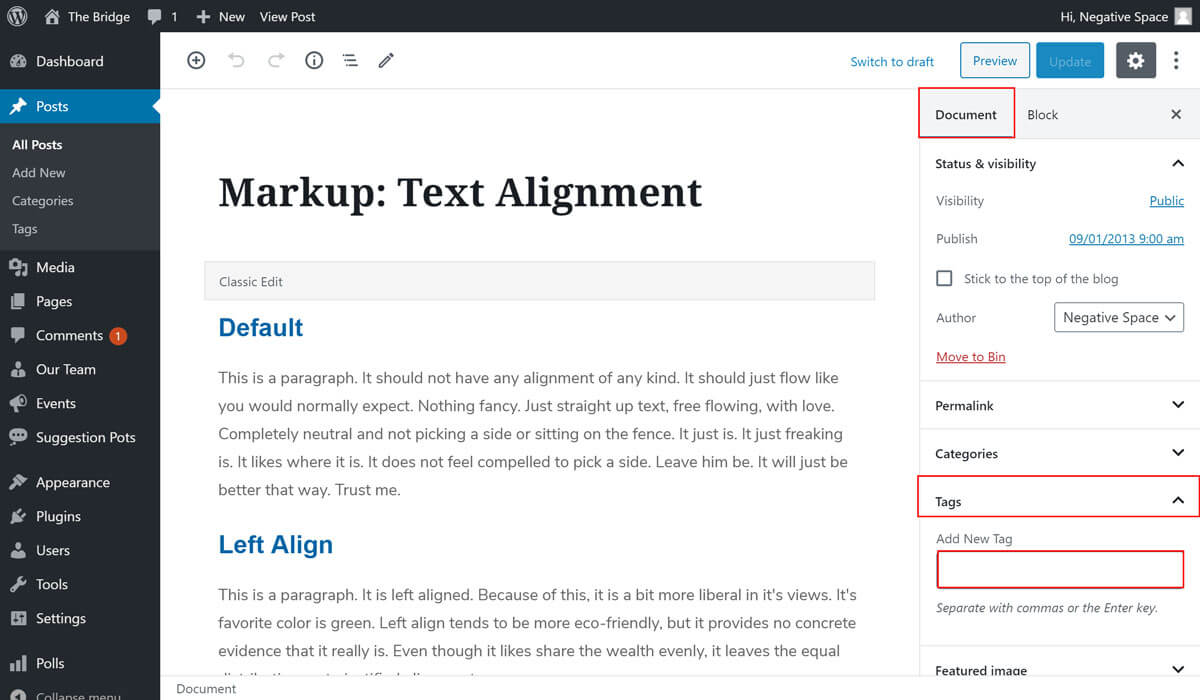
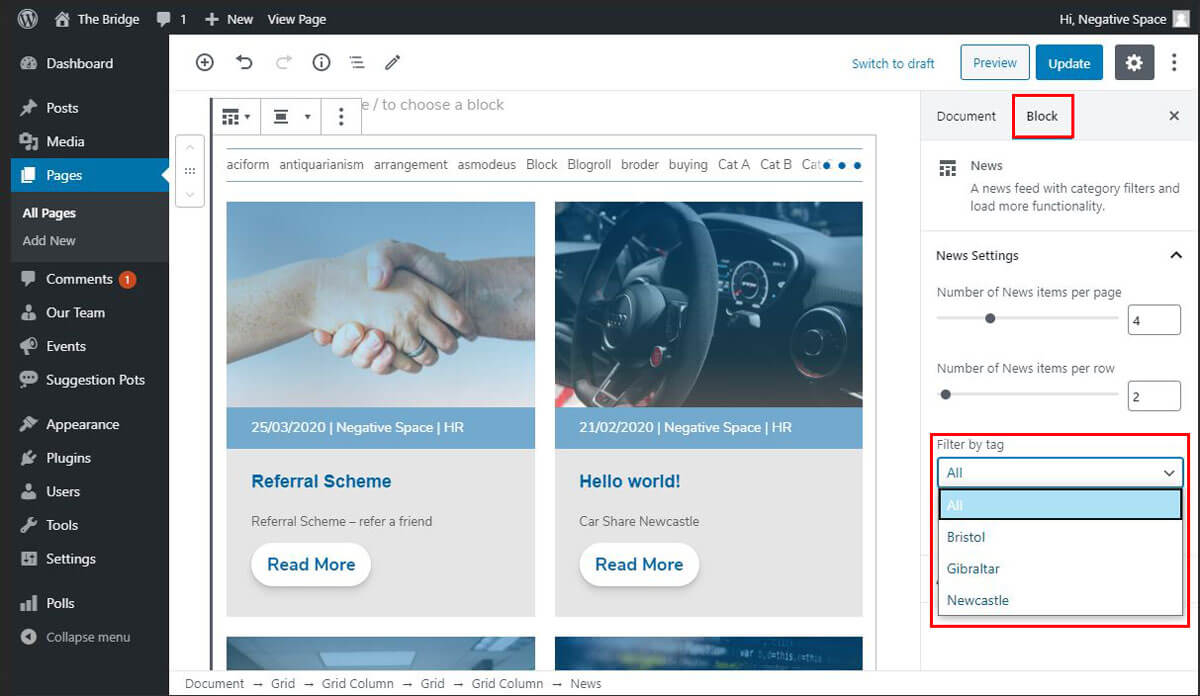
Once you have Posts tagged by a specific tag (e.g. "Bristol"), you can use the News block and filter the news shown by a certain tag. To do that select a tag to filter by in the Filter by tag dropdown under the Block tab as highlighted below and click on Update / Publish to save your changes.