
# Logo modal triggers
This Gutenberg block comes as part of the SBGL Modals custom plugin and it's used to construct the following logos that trigger individual modals with information about a Somerset Bridge company.

Please note: This block is designed to work with Modal content, so make sure to add modal content before adding this block to a page.
# Adding the block to a page
To add a Logo modal triggers block:
- Add or edit a page that uses the Gutenberg editor (e.g. Page or Post)
- Click to add a Gutenberg block (more on how to add a Gutenberg block can be found here)
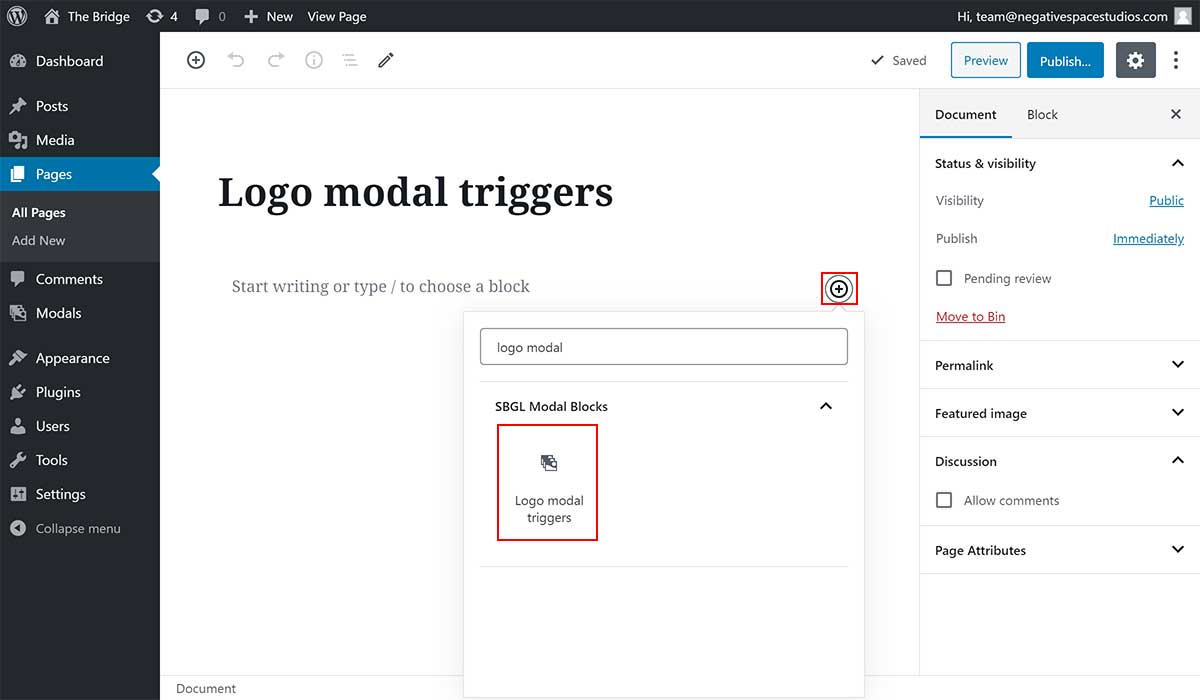
- Find the block with the name Logo modal triggers (highlighted below) and,
- Click on it to add it
# Customising the block
Once you've added the block, you will be presented with all the configuration options for it which are explained in detail in the following sections.
# Adding a logo
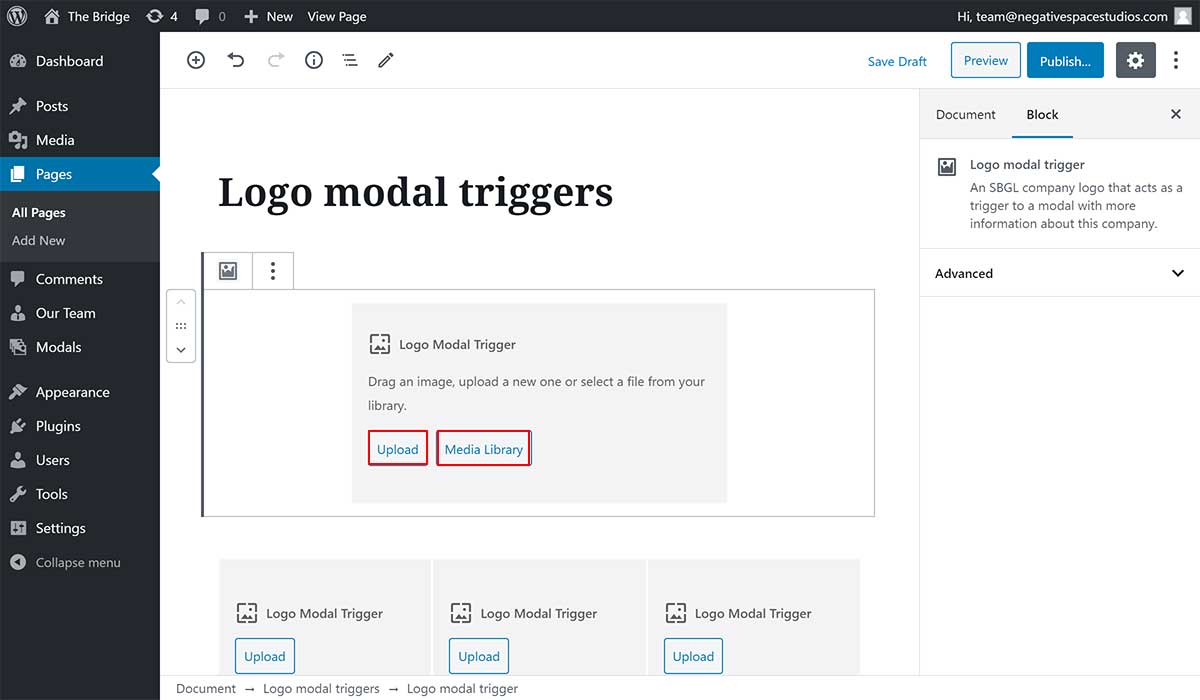
The first step when customising this block is adding a logo that will act as a trigger for a modal. As per the design, the first logo will go to the top of the hierarchy and the following three logos will go under the first logo inline with each other.
To add an image that will be used as the logo that will trigger the modal, simply:
- Upload a new image by clicking on the Upload button (highlighted below), or
- Use an existing image by clicking on the Media Library button (highlighted below).
# Selecting a modal
Once you choose a logo you can choose the modal to trigger when a user clicks on that logo, as shown below:
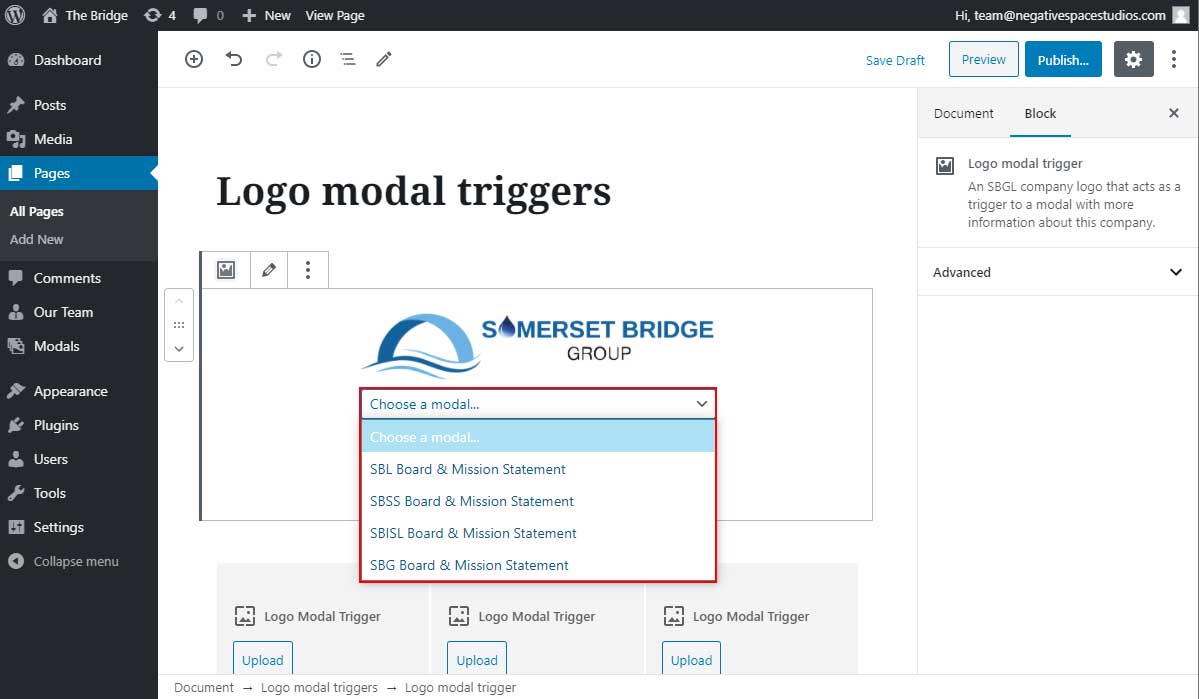
If you don't see any modals listed in the dropdown, make sure to add some modal content.
To save your changes click on Publish... / Update.
← Logo carousel News →