# Events on Page Block
The Events on Page Gutenberg block allows you to promote your events on other site pages or within news articles. You can add the block to your page in the same way you would any other type of content, giving you full control over its position on the page.
The Events on Page block comes with the Events plugin and has the following features:
- Event category selection - only include events from a specific category on your page.
- Two different display options - select from two different layouts for your events.
# Adding the block to a page
To add the Events on Page block to your page, follow the following steps:
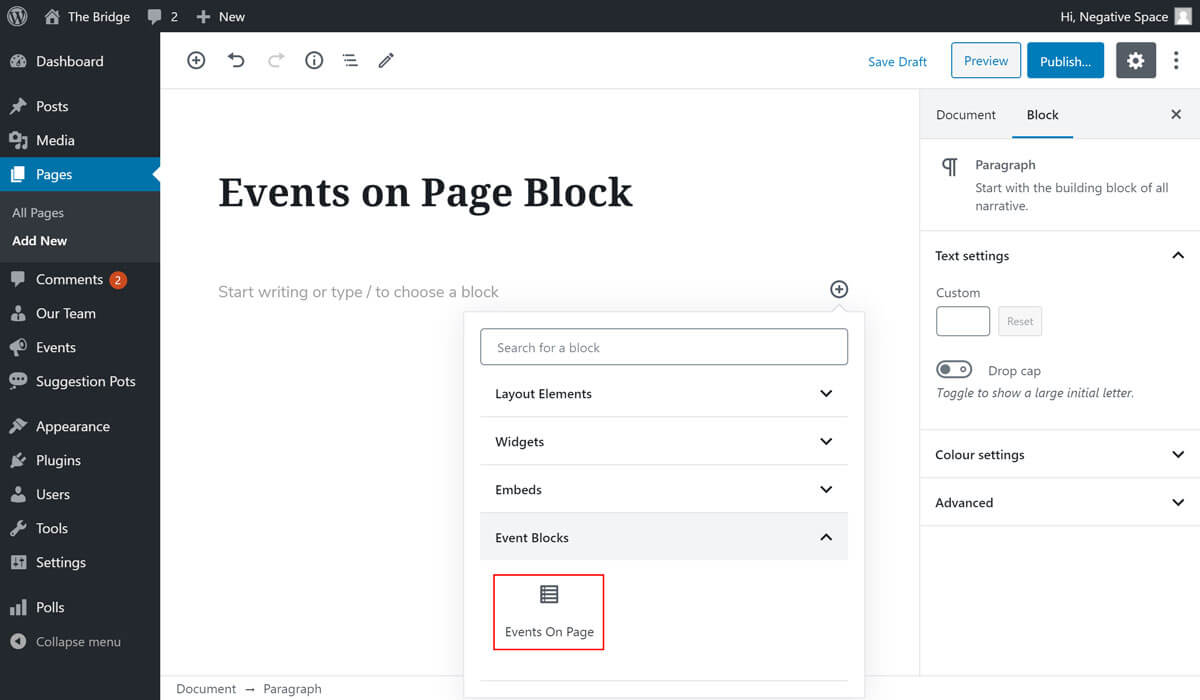
- Whilst on the Edit screen for your page (or article), click on the plus icon to launch the block addition interface. The Events on Page block can be found under the Event Blocks category or by using the search bar to search for the block. Click on the block icon and name (shown in the screenshot below) to add it to the page.
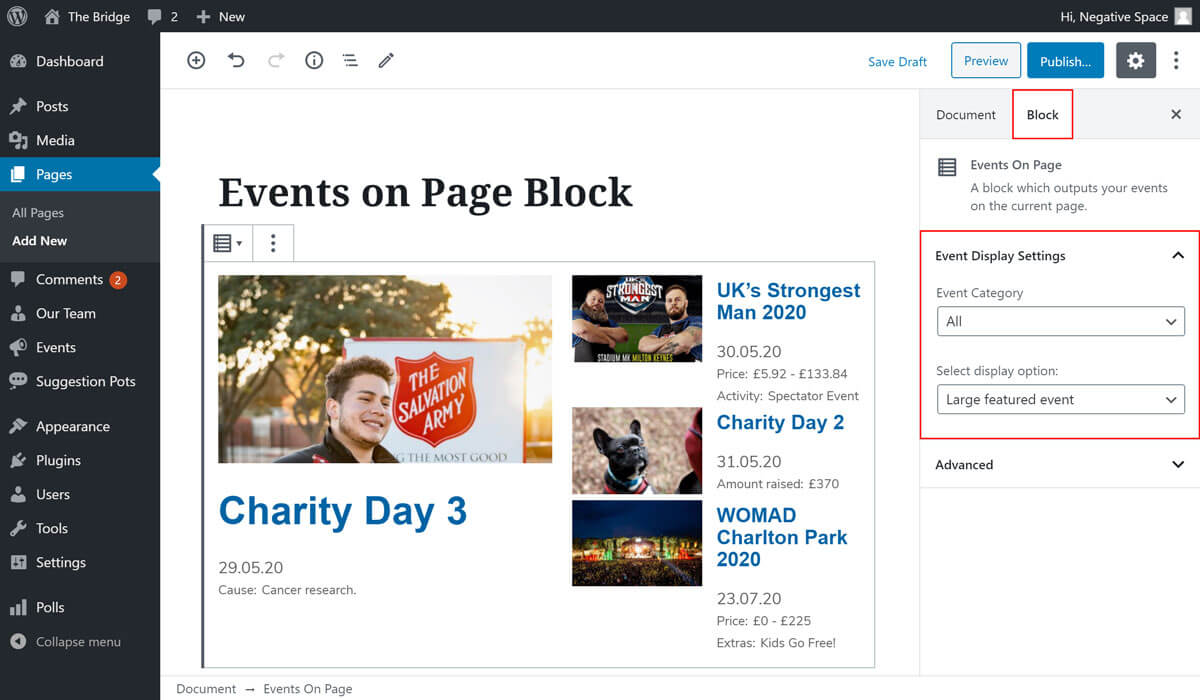
- After adding the block to the page, and while you have it selected, the interface will show the block's configuration options in the right hand sidebar. By default the block will display the next 4 events in date order and will include events from any category. Make sure you have the block selected and are on the Block tab in the sidebar to see the configuration controls.
# Category selection
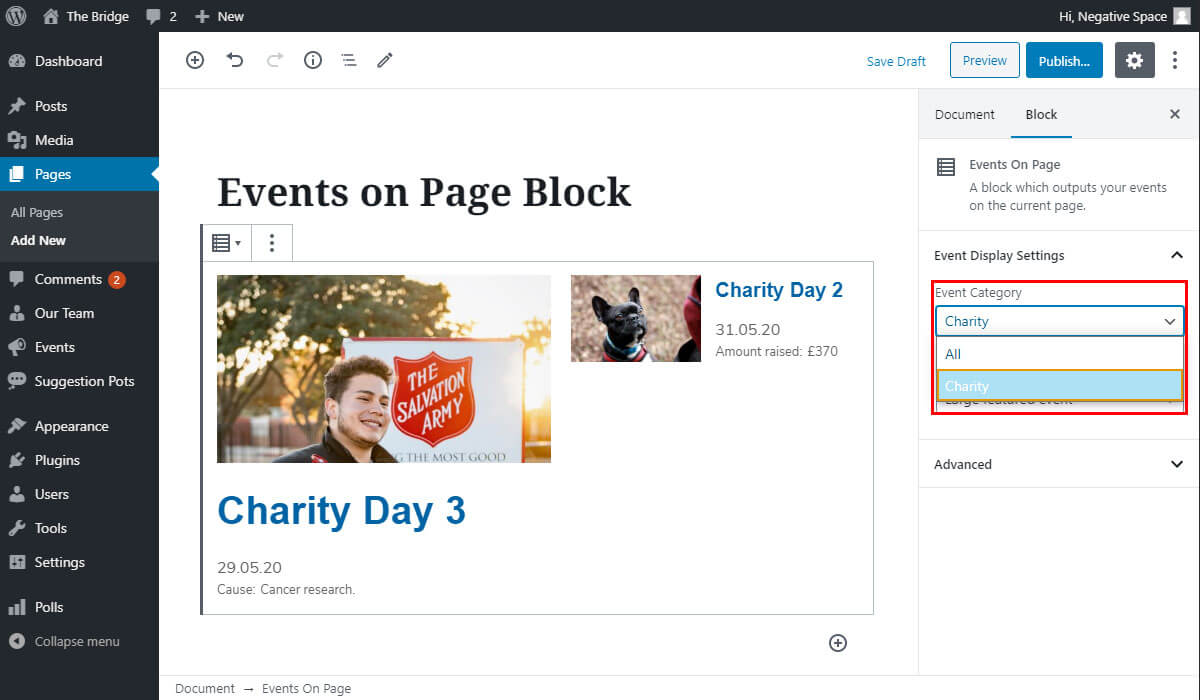
Selecting a specific event category will cause the block to only include events that have been assigned that category.
To select a category, use the dropdown control provided to select an event category from the list. Once a category is seleted, the block will be updated to only show events that are included in that category.
# Layout selection
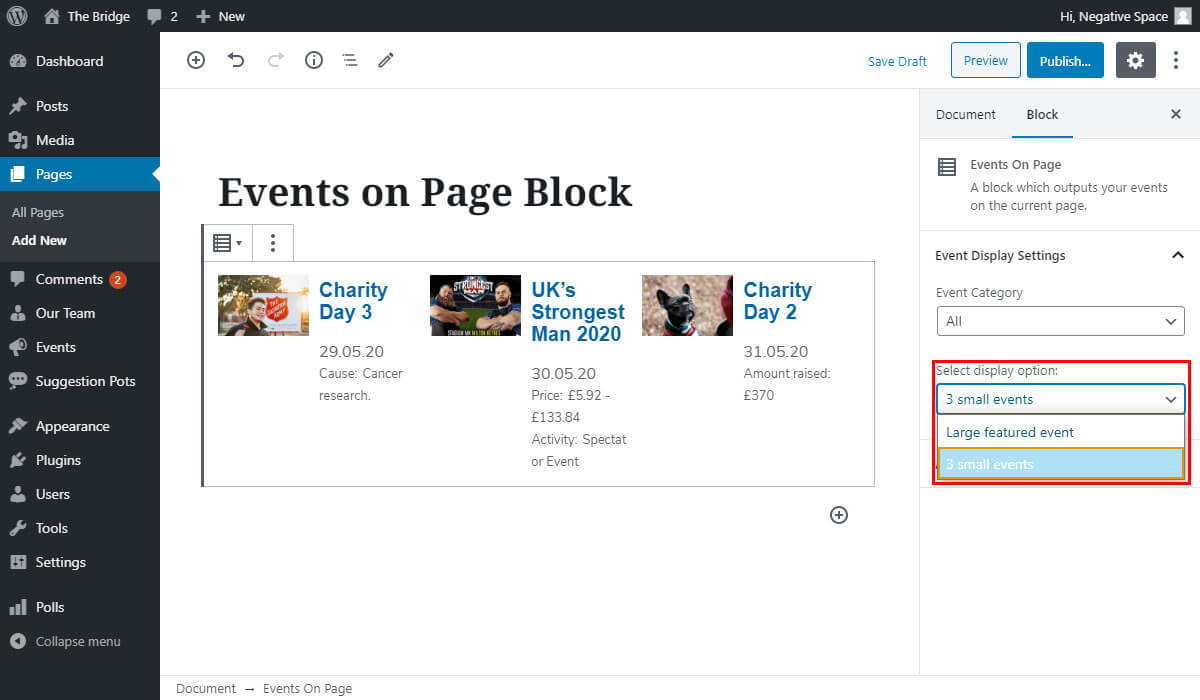
The block supports two different display layout options. To select a layout option, use the dropdown control provided to switch between options.
# Large featured event
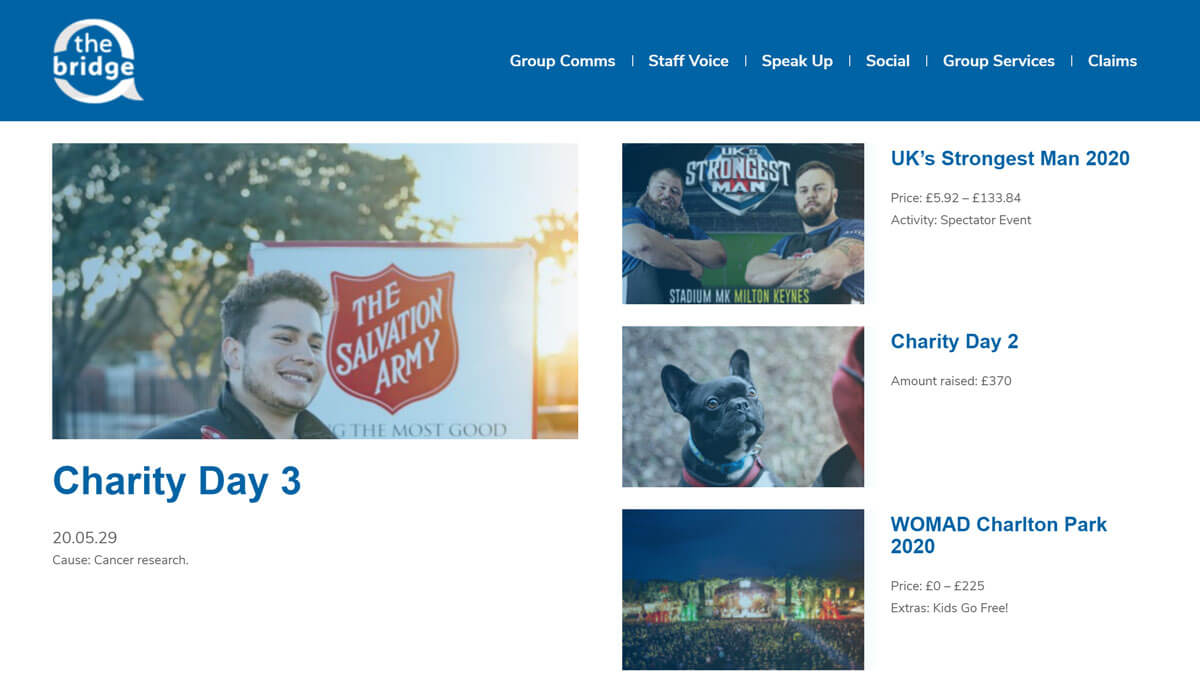
This display option displays the next four events. The first event is displayed to the left hand side larger than the others (the featured event). The other three events are displayed smaller to the right hand side on top of one another.
# 3 small events
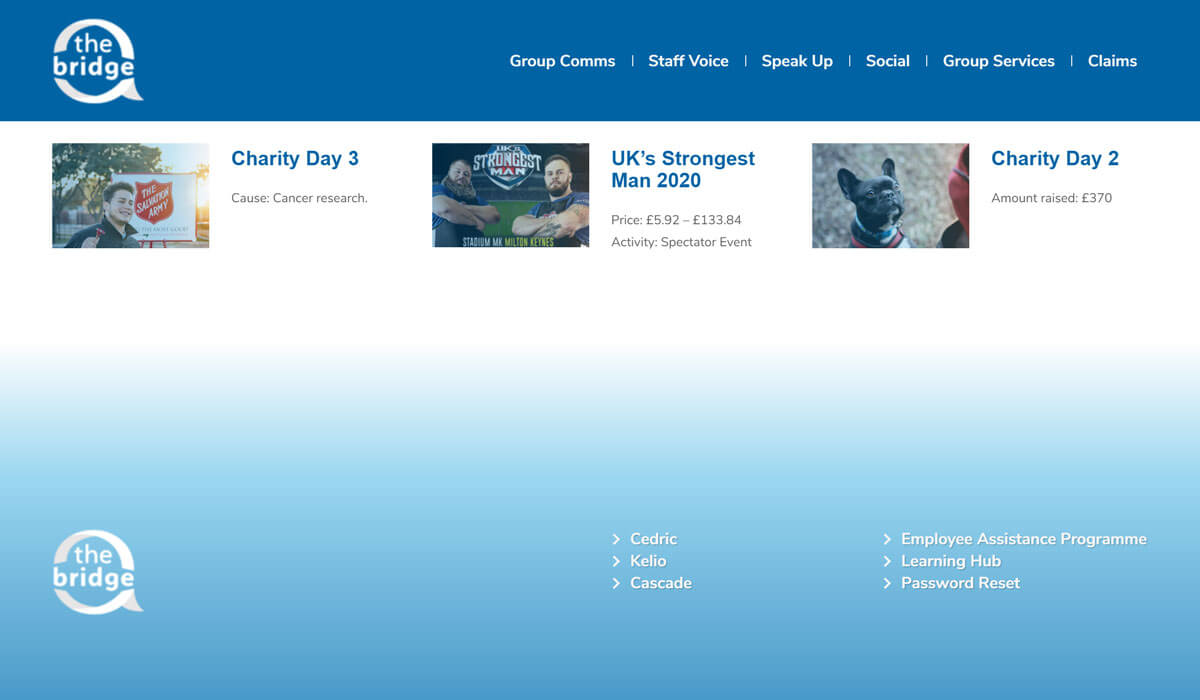
This display option displays the next three events. Each event is given an equal amount of page space, with the event image displayed on the left, and the additional information fields displayed on the right.