
# Adding a Link
WordPress comes with Gutenberg blocks that give you the option to add a link to other content. In this section we will go through some of these blocks that are used throughout the site to achieve the Phase 1 and Phase 2 Intranet designs.
# Adding a paragraph link
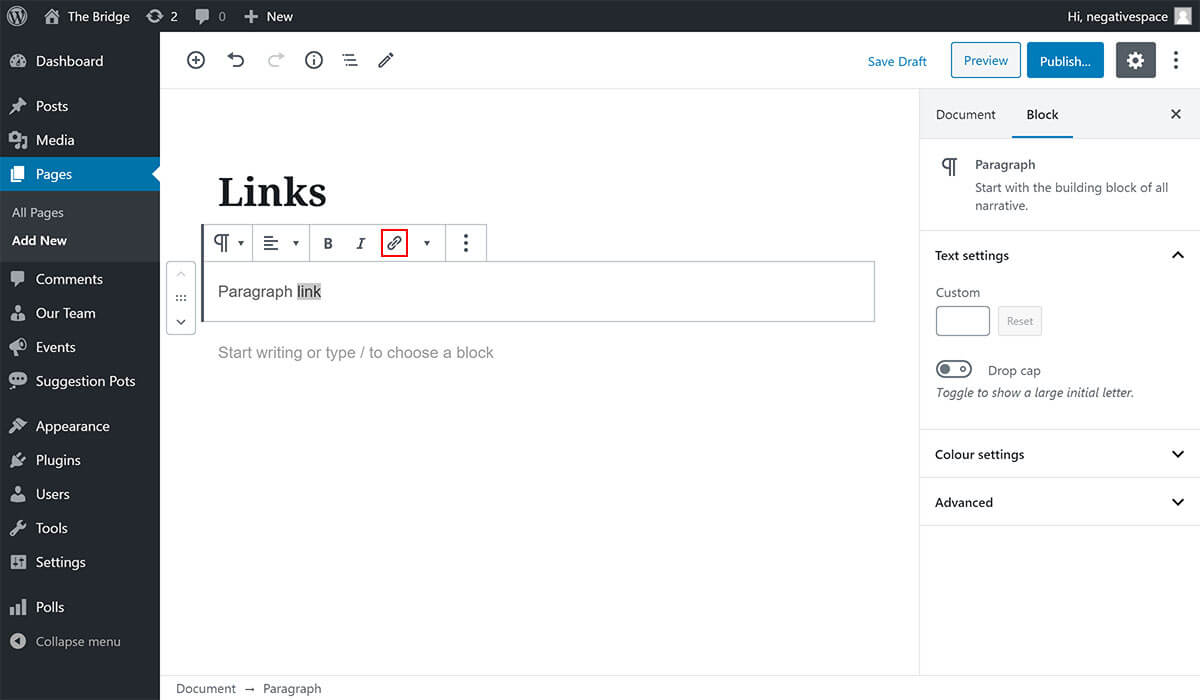
The Paragraph block comes with a link control that can add a link to a selected piece of text. To use this link control, simply:
- Add the Paragraph Gutenberg block (more on how to add a Gutenberg block can be found here)
- Type and highlight the text you want to link to an internal or to an external URL
- Click on the link icon button (highlighted below)
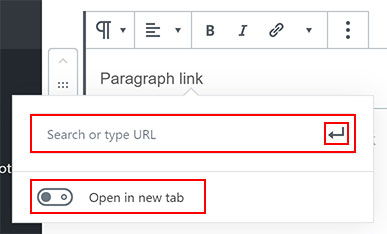
- Type the name of a site page to search for that page or paste a specific URL into the link field (highlighted below)
- Choose whether to open the link in a new window by enabling the Open in new tab toggle (higlighted below)
- Click on the enter button (highlighted below) to finish editing the link
# Adding a heading link
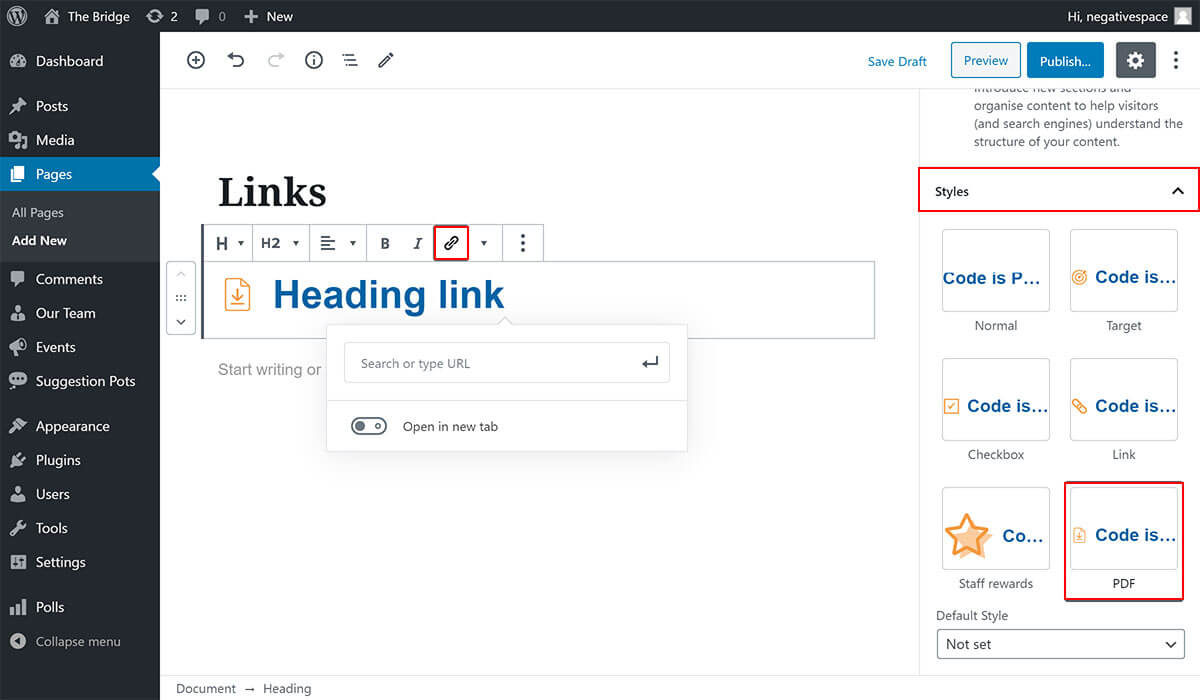
Similarly to the Paragraph block, the Heading block comes with the same link control that allows you to link a selected piece of text to an internal or to an external link (highlighted below).
In addition to the link control, the Heading block comes with predefined styles that can add an icon to the left hand side of the heading and further enhance the heading's definition (e.g. PDF link). To add a style, simply expand the Styles dropdown menu and click on a preview button to apply the style as highlighted below.
# Adding a button link
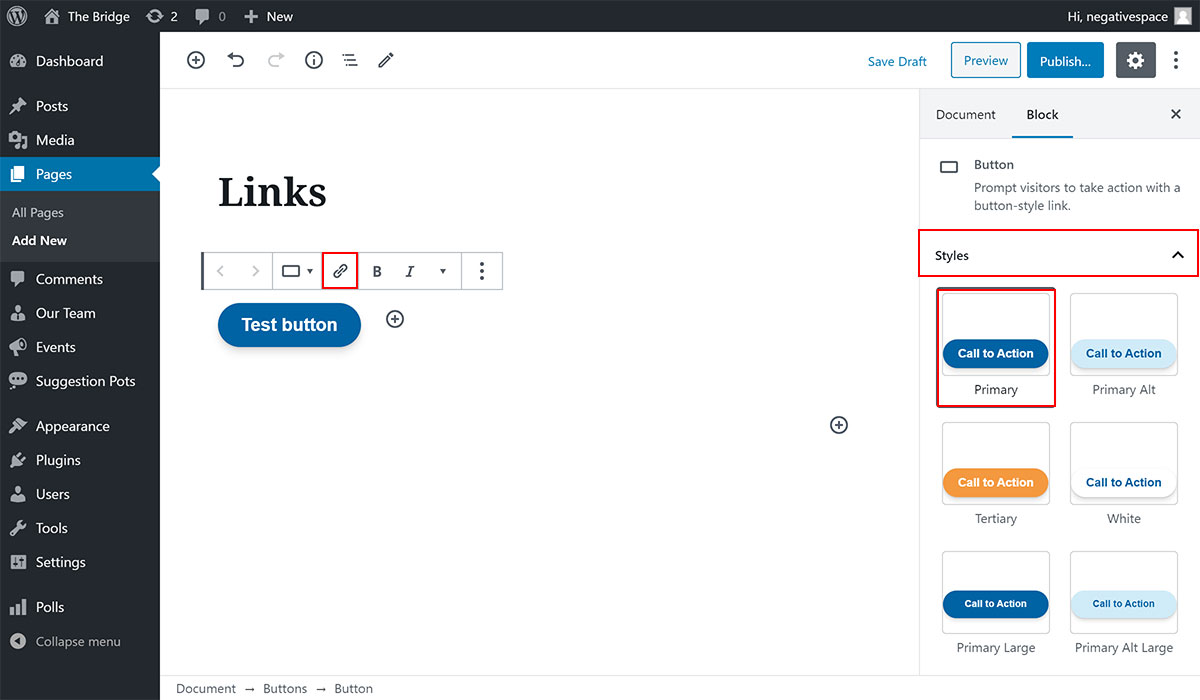
Buttons are used across the Intranet and come with the link control explained in the Adding a paragraph link section.
Similarly to the Heading block, buttons come with predefined styles that can change the button design. To choose a style, simply expand the Styles dropdown menu and click on a preview button to apply the style as highlighted below.
# Adding an image link
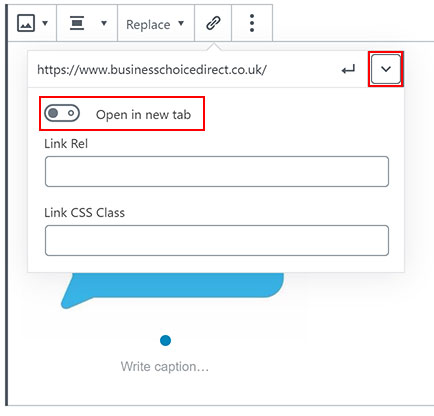
Image blocks come with the link control explained in the Adding a paragraph link section extended with the following options:
- Media File option; choose to link to the image file itself
- Attachment Page option; choose to link to the image page

Note: to set the image link to open in a new tab, click on the expand button (highlighted below) and enable the Open in new tab toggle.
Check the official documentation to find out more information about the blocks that come by default with WordPress.