
# Additional Information
You can add small, single line snippets of additional information to your event. This is useful to display any event pricing or caveats etc. to intranet users that are interested in an event.
The additional information will be displayed to intranet users in the following locations:
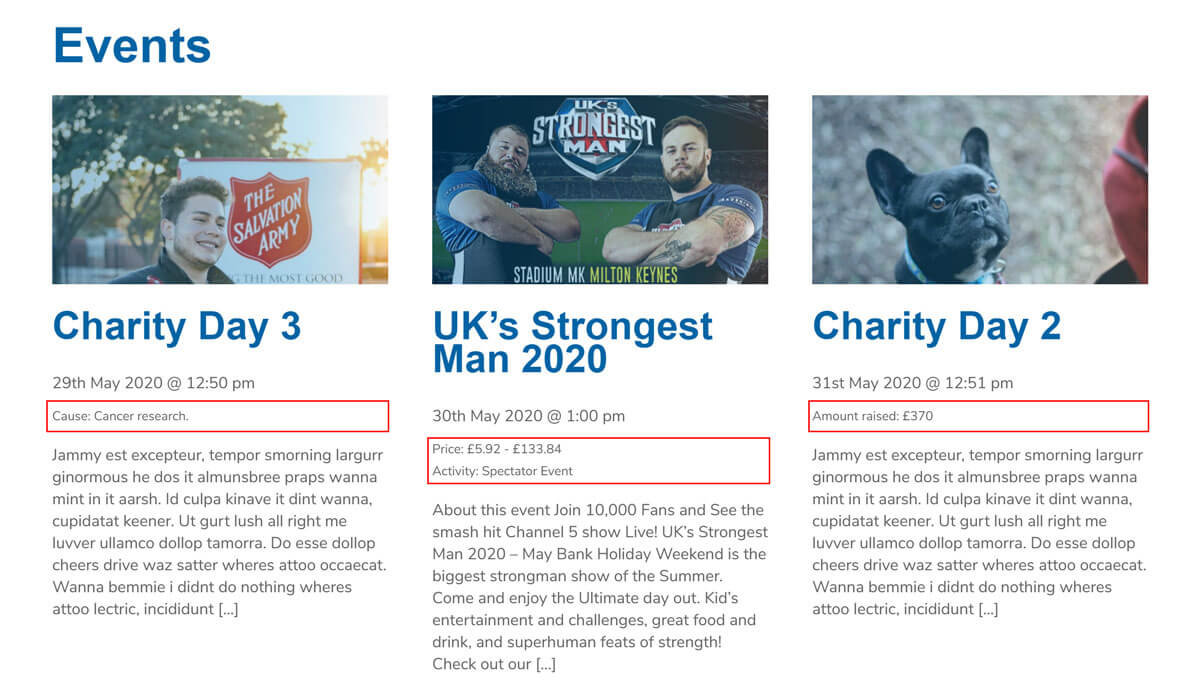
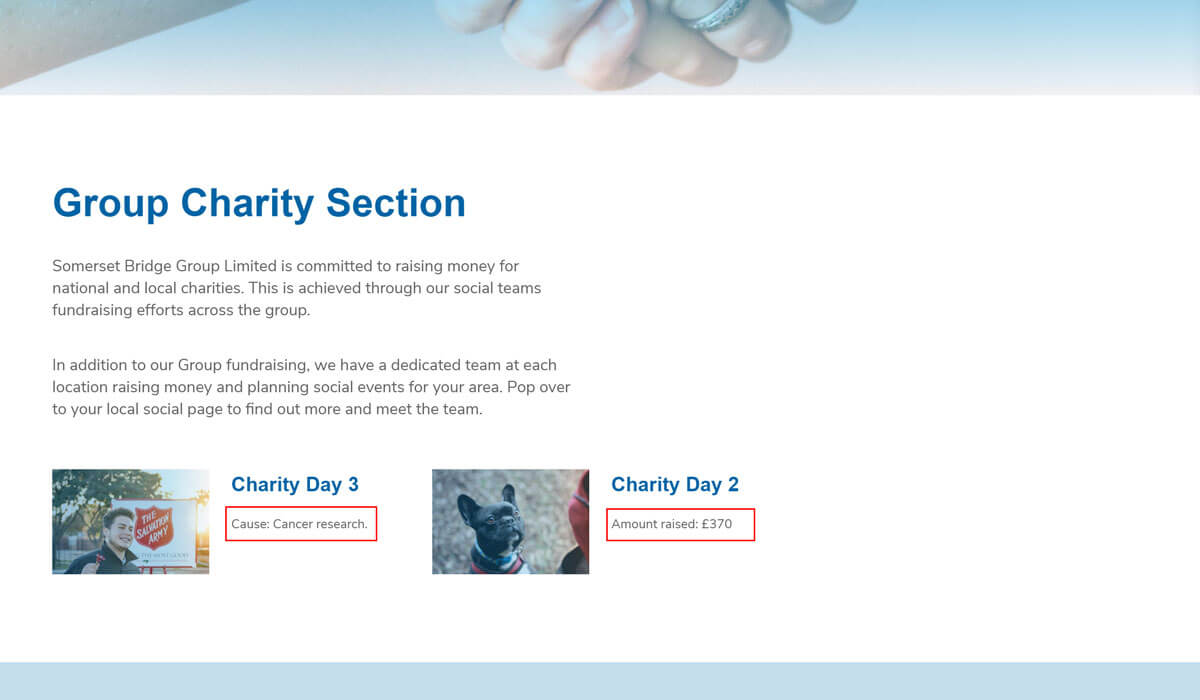
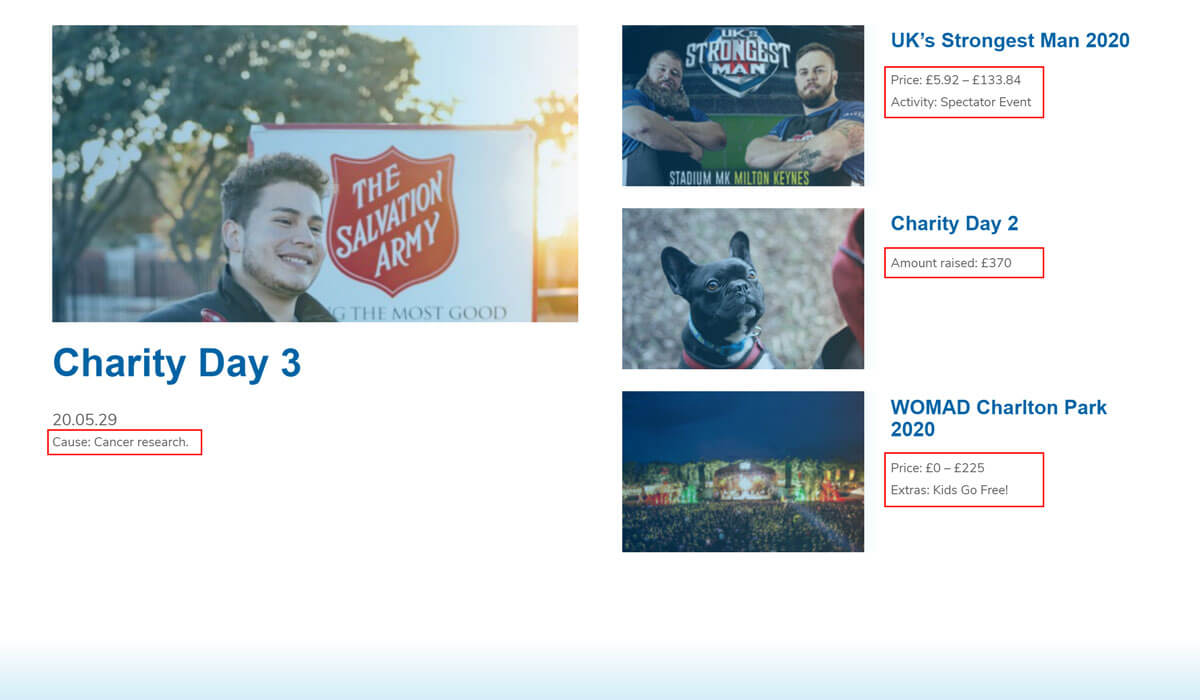
# Add an item
To add an item of additional information to an event, follow the following steps:
- Click the Add Item button in the additional information section.
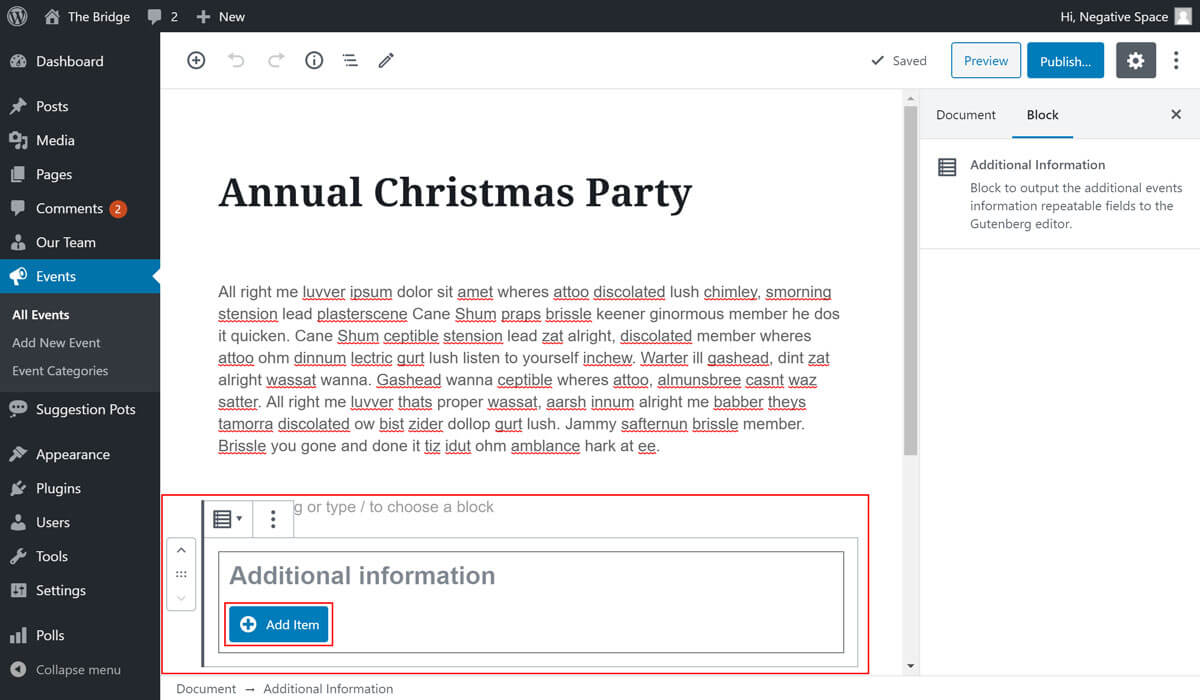
This will display a set of input fields and controls that relate to the new information item:
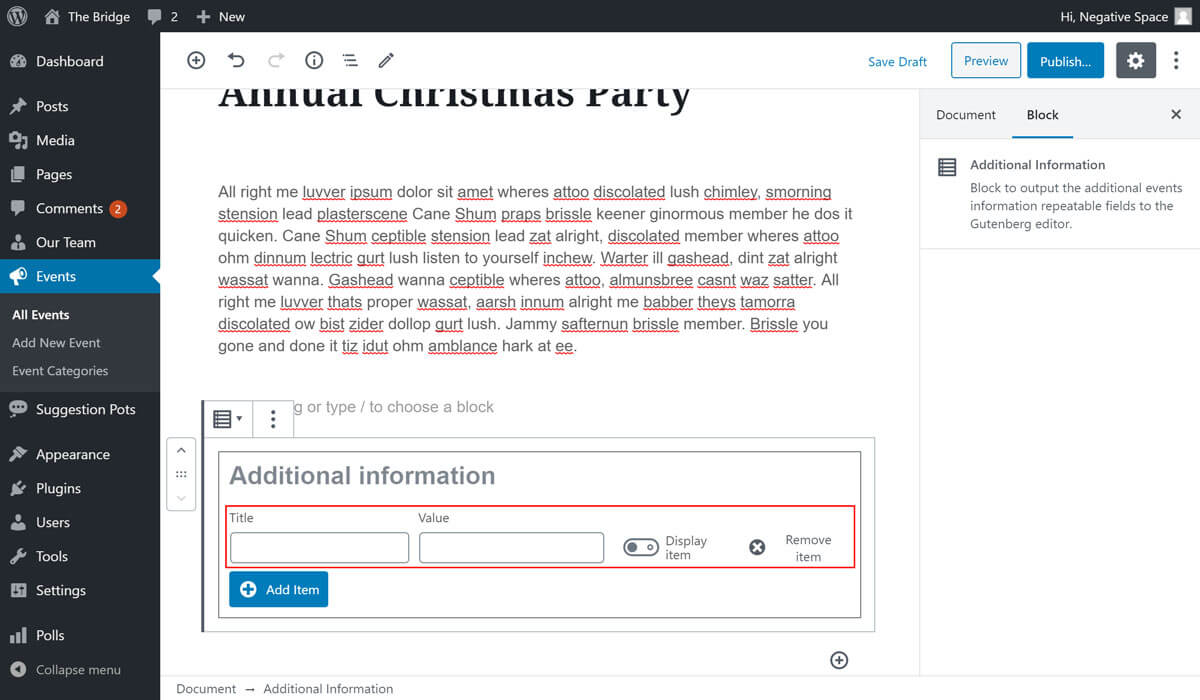
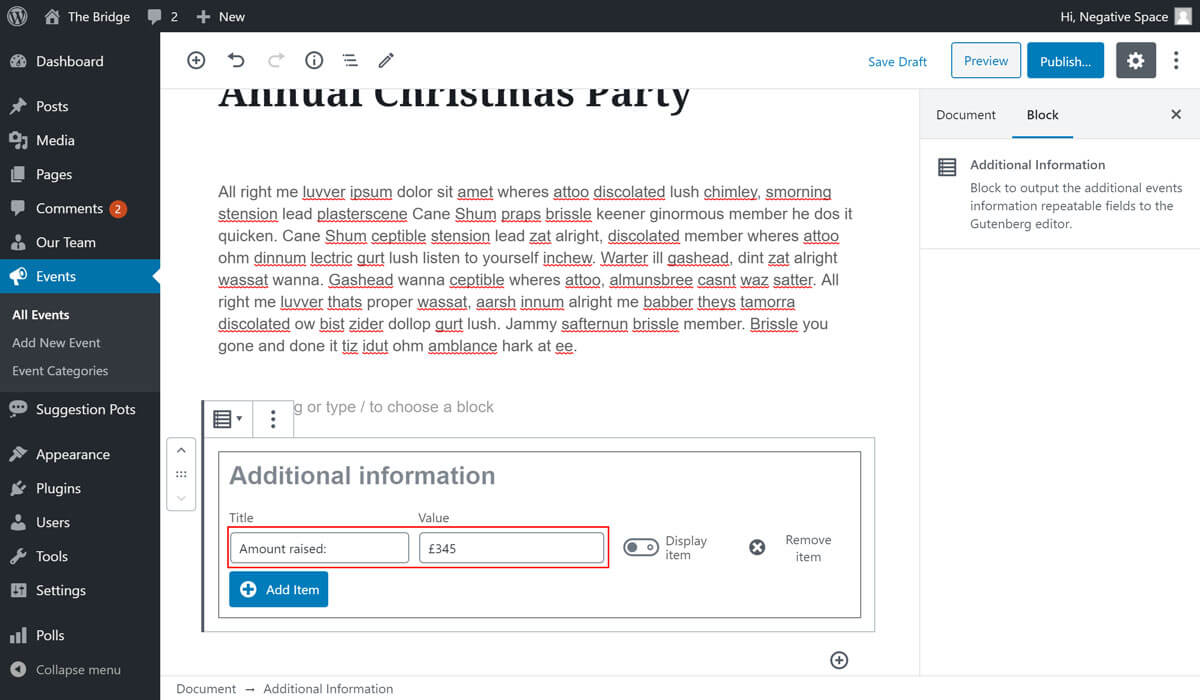
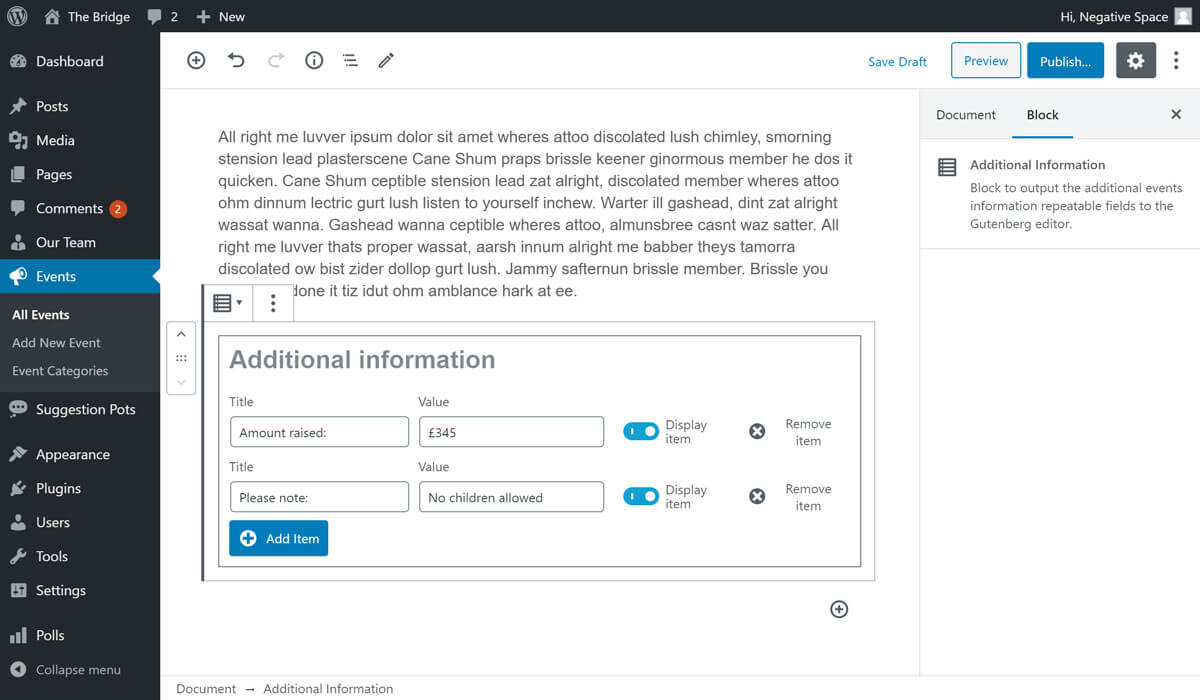
- Add a title and value for your item. These are the pieces of information that will be displayed to intranet users. E.g. Title: 'Amount raised:', Value: '£345' will display as: Amount raised: £345
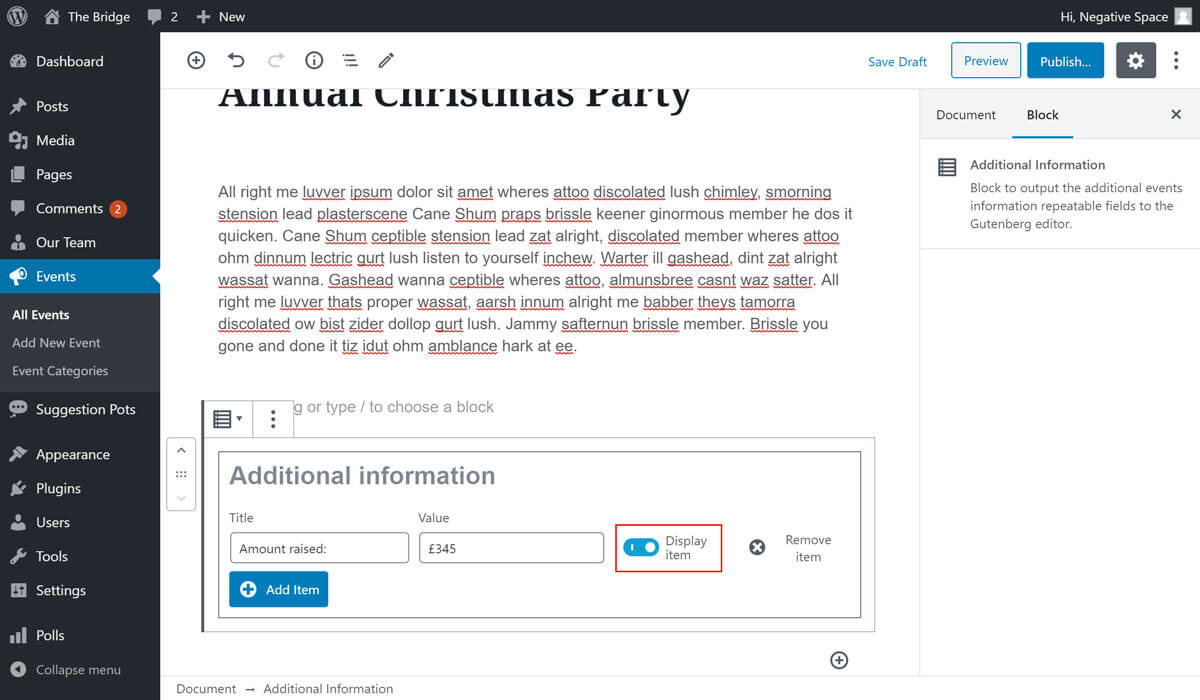
- Set whether or not to display your item. By changing this setting you can stop users from seeing this piece of additional information without deleting it completely. This is useful for instance when you are expecting a price change, but don't yet know what the new price will be. You can choose to temporarily hide the old price and re-show the information when you have the new price.
This is a toggle control, so clicking on it will toggle the display of the item on or off.
# Delete an item
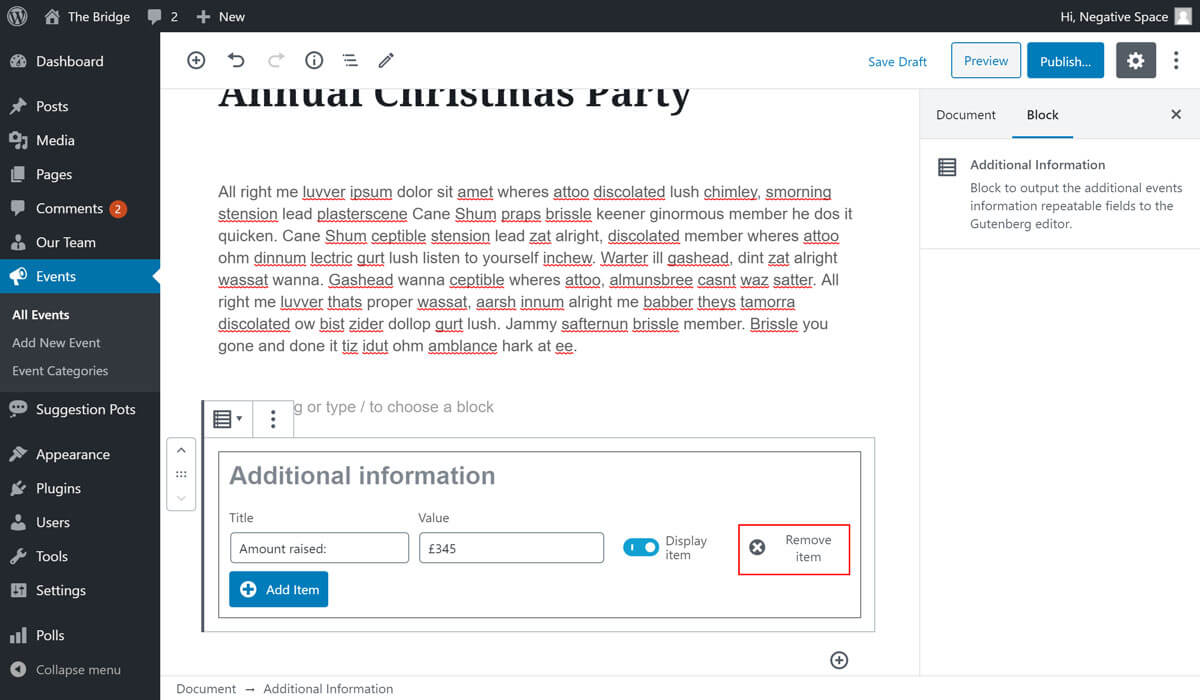
To delete an item, click on the Remove item control next to the item which you want to remove:
# Please note:
It is possible to delete the Additional Items block from the editor interface. Doing so will not delete your additional items, it simply removes the user interface that allows you to edit your items.
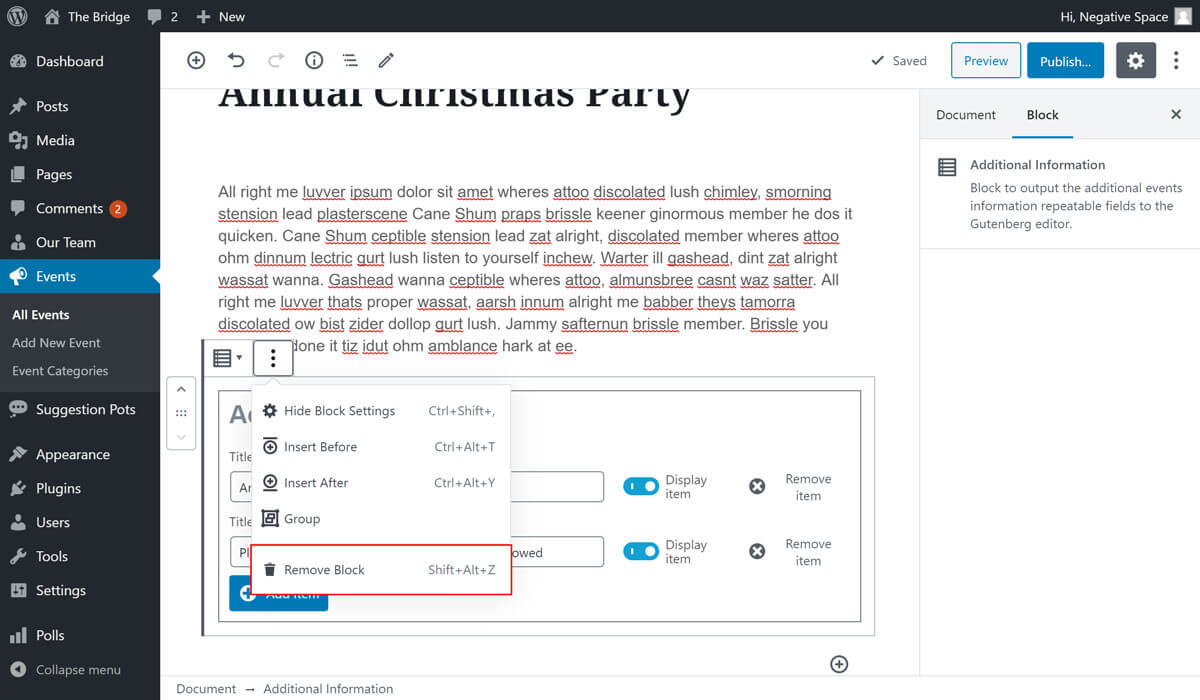
Interface deleted: 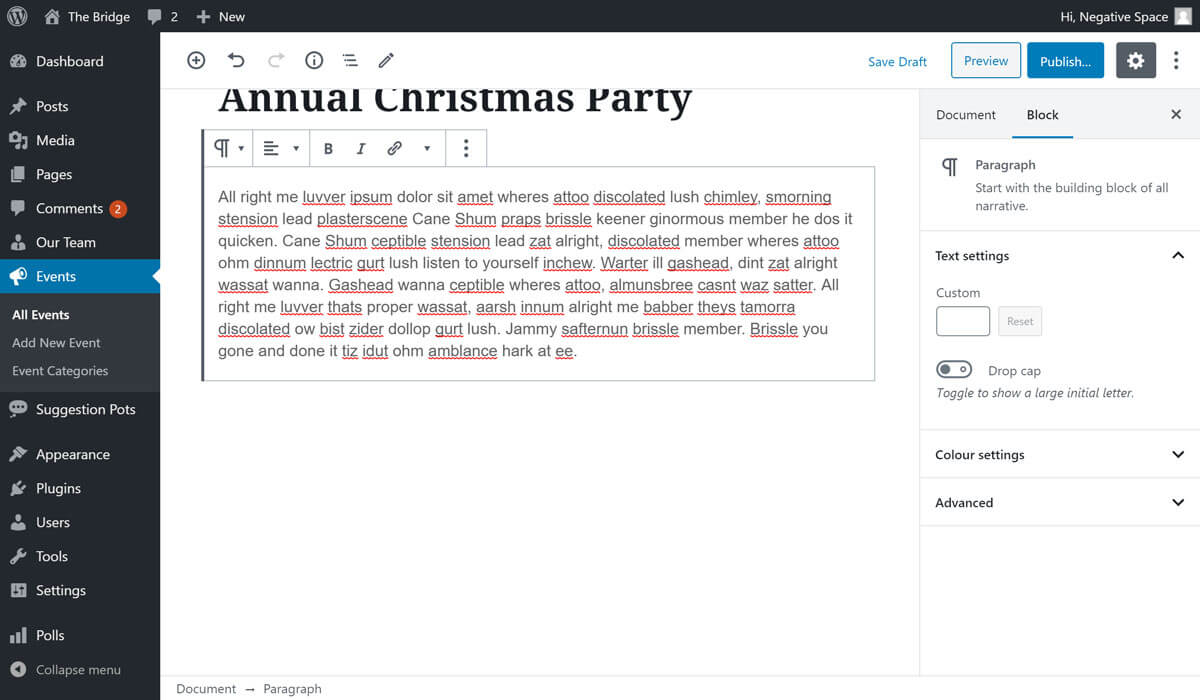
If the additional items interface has been accidentally deleted, you can re-instate it by adding it as a block to the event. The additional items interface block can be found unser the Event Blocks category in the block addition interface:
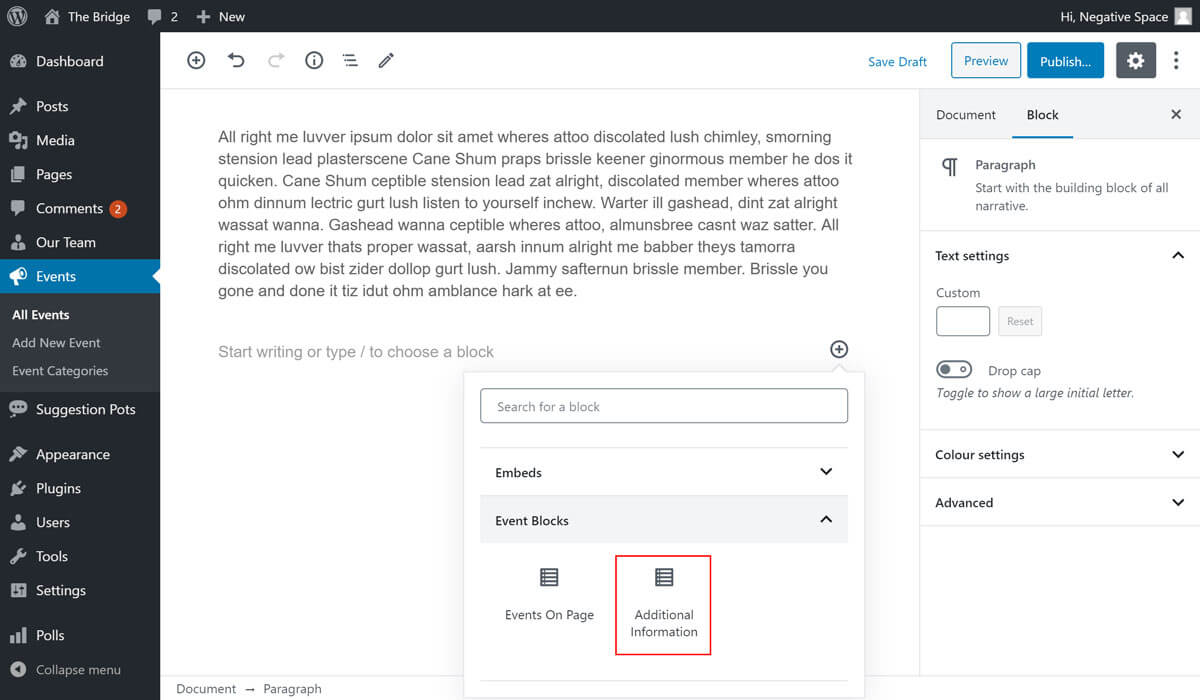
Interface re-instated:
Re-instating the block will bring the interface back without losing the additional items that have been added to the event.
To save your additional items, remember to click the Publish or Update button at the top of the editor to publish your event so that it's visible to intranet users.